> ## Documentation Index
> Fetch the complete documentation index at: https://docs.cedarai.com/llms.txt
> Use this file to discover all available pages before exploring further.
# Activity Log
> Review changes made in the Admin Portal.
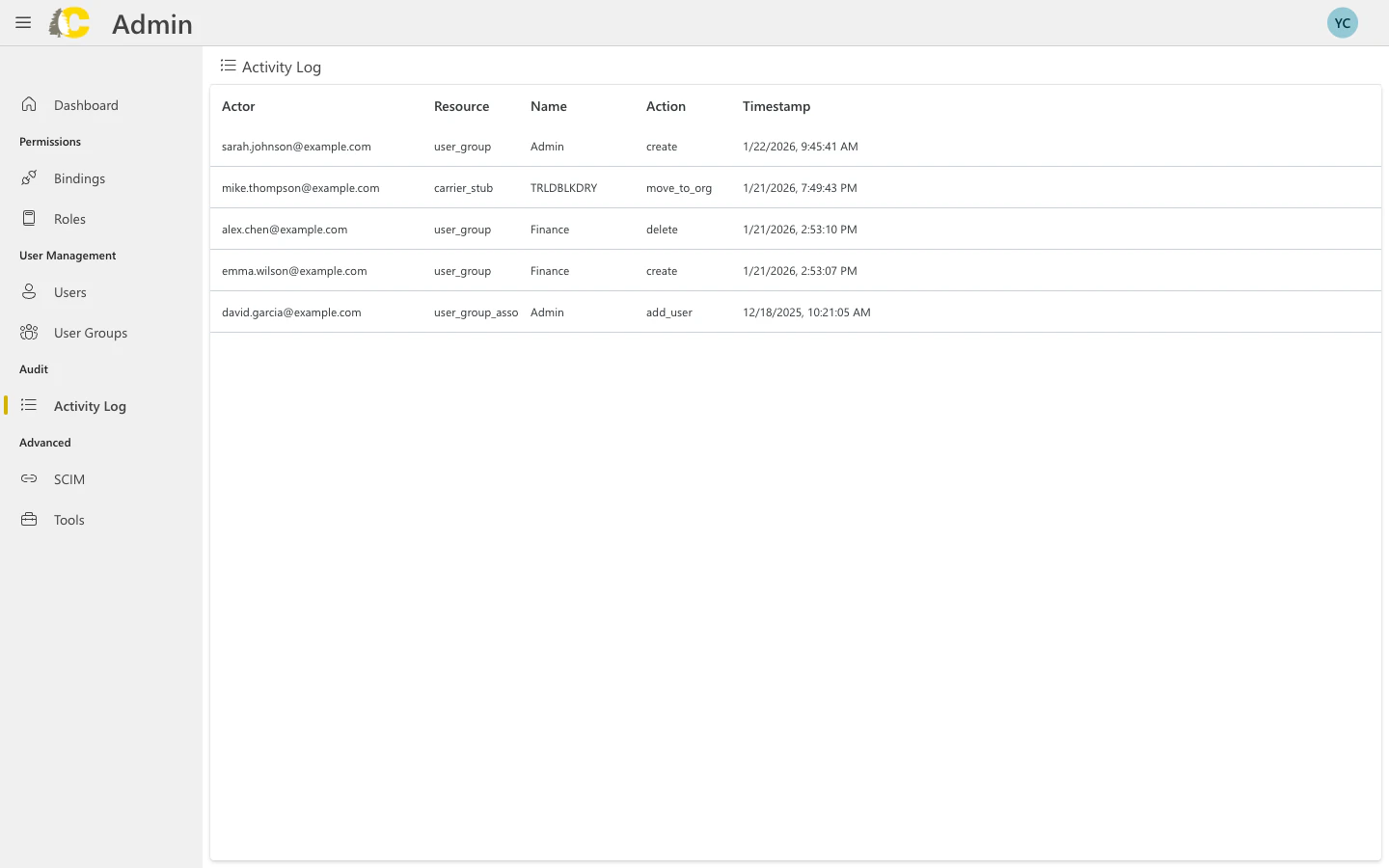
The Activity Log shows a history of all changes to access and identity settings. Use it for audits, troubleshooting, and compliance.
 ## What you can see
Every entry in the log includes:
Who made the change (email address)
What was changed (user, group, role, binding)
What happened (create, update, delete)
When it happened
## When to use the Activity Log
Review who has made changes over a period of time. Useful for compliance reviews and security audits.
**Example questions:**
* Who created this binding?
* When was this group modified?
* What changes were made last week?
Investigate when something stopped working. Look for recent changes that might explain the issue.
**Example scenario:**
A user suddenly can't access a feature. Check if their group membership or binding was recently changed.
Confirm that changes you requested were actually made. After asking someone to update access, check the log to verify.
## Understanding actions
| Action | Meaning |
| ------------- | --------------------------------- |
| `create` | A new resource was created |
| `update` | An existing resource was modified |
| `delete` | A resource was removed |
| `add_user` | A user was added to a group |
| `remove_user` | A user was removed from a group |
## Best practices
Review the activity log periodically, not just when there's a problem. This helps you catch unexpected changes early.
When troubleshooting, note when the issue started and look for changes around that time.
If you see a change you don't recognize, follow up with the actor to understand why it was made.
The Activity Log is read-only. You can't undo changes from here—you'll need to make corrective changes through the appropriate pages (Users, Groups, Roles, or Bindings).
## Related pages
See recent activity at a glance
Review access grants
Check group memberships
Review user details
## What you can see
Every entry in the log includes:
Who made the change (email address)
What was changed (user, group, role, binding)
What happened (create, update, delete)
When it happened
## When to use the Activity Log
Review who has made changes over a period of time. Useful for compliance reviews and security audits.
**Example questions:**
* Who created this binding?
* When was this group modified?
* What changes were made last week?
Investigate when something stopped working. Look for recent changes that might explain the issue.
**Example scenario:**
A user suddenly can't access a feature. Check if their group membership or binding was recently changed.
Confirm that changes you requested were actually made. After asking someone to update access, check the log to verify.
## Understanding actions
| Action | Meaning |
| ------------- | --------------------------------- |
| `create` | A new resource was created |
| `update` | An existing resource was modified |
| `delete` | A resource was removed |
| `add_user` | A user was added to a group |
| `remove_user` | A user was removed from a group |
## Best practices
Review the activity log periodically, not just when there's a problem. This helps you catch unexpected changes early.
When troubleshooting, note when the issue started and look for changes around that time.
If you see a change you don't recognize, follow up with the actor to understand why it was made.
The Activity Log is read-only. You can't undo changes from here—you'll need to make corrective changes through the appropriate pages (Users, Groups, Roles, or Bindings).
## Related pages
See recent activity at a glance
Review access grants
Check group memberships
Review user details