> ## Documentation Index
> Fetch the complete documentation index at: https://docs.cedarai.com/llms.txt
> Use this file to discover all available pages before exploring further.
# Dashboard
> Get a quick view of access coverage, roles, and recent activity.
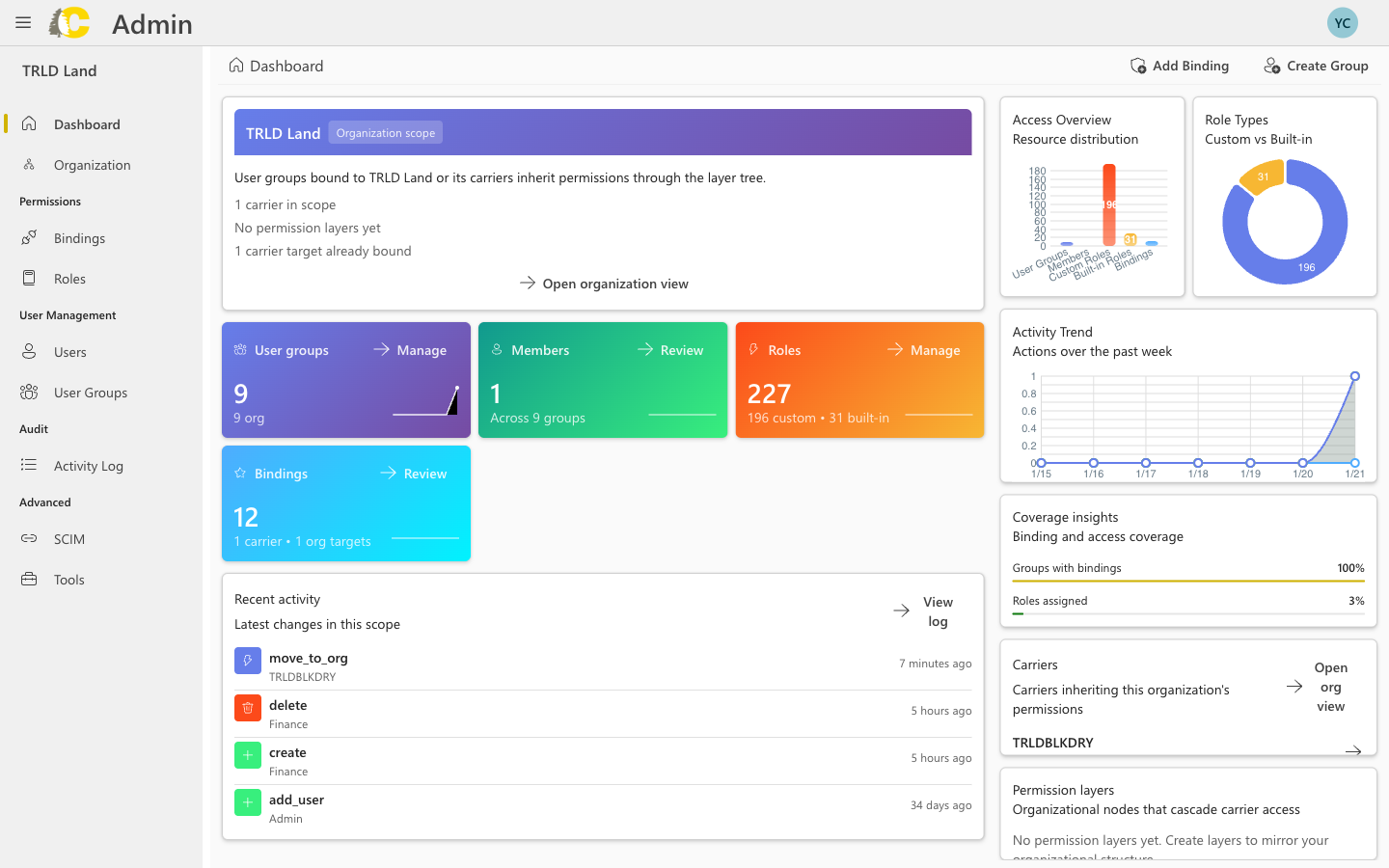
The dashboard gives you a quick snapshot of access across your organization or carrier. It's the fastest way to see what's set up and what might need attention.
 ## Organization scope (optional)
Organizations are an optional feature for accounts managing multiple carriers. If you don't see the organization scope section, your account uses single-carrier mode.
If your account has an organization set up, the dashboard shows your **organization scope** at the top left. This displays:
* The organization name
* Number of carriers in scope
* Permission layers configured
* Carrier bindings
Click **Open organization view** to manage your organization hierarchy and layers. See [Organization](/user-docs/admin/organization) for details.
## At a glance
Teams with access
People across groups
Permission sets
Active access grants
## What you can do
See how many user groups, members, roles, and bindings exist at your carrier. The charts show the distribution between custom and built-in roles.
The **Recent activity** section shows the latest changes. Click **View log** to see the full history.
Use the action buttons to jump directly to:
* **Add Binding** — grant new access
* **Create Group** — set up a new team
## When to use the dashboard
Quickly verify that access is configured for a new team by checking the metrics and recent activity.
After making changes, return to the dashboard to confirm they appear in the activity feed.
Use the dashboard as a launchpad to jump directly to Bindings, User Groups, or Roles.
## Next steps
Manage organization hierarchy
Grant access to groups
Manage teams
Review permission sets
## Organization scope (optional)
Organizations are an optional feature for accounts managing multiple carriers. If you don't see the organization scope section, your account uses single-carrier mode.
If your account has an organization set up, the dashboard shows your **organization scope** at the top left. This displays:
* The organization name
* Number of carriers in scope
* Permission layers configured
* Carrier bindings
Click **Open organization view** to manage your organization hierarchy and layers. See [Organization](/user-docs/admin/organization) for details.
## At a glance
Teams with access
People across groups
Permission sets
Active access grants
## What you can do
See how many user groups, members, roles, and bindings exist at your carrier. The charts show the distribution between custom and built-in roles.
The **Recent activity** section shows the latest changes. Click **View log** to see the full history.
Use the action buttons to jump directly to:
* **Add Binding** — grant new access
* **Create Group** — set up a new team
## When to use the dashboard
Quickly verify that access is configured for a new team by checking the metrics and recent activity.
After making changes, return to the dashboard to confirm they appear in the activity feed.
Use the dashboard as a launchpad to jump directly to Bindings, User Groups, or Roles.
## Next steps
Manage organization hierarchy
Grant access to groups
Manage teams
Review permission sets