> ## Documentation Index
> Fetch the complete documentation index at: https://docs.cedarai.com/llms.txt
> Use this file to discover all available pages before exploring further.
# Roles
> Roles define what actions a user group can take.
A **role** is a named set of abilities (permissions). Roles are assigned to groups through bindings to grant access.
 ## Types of roles
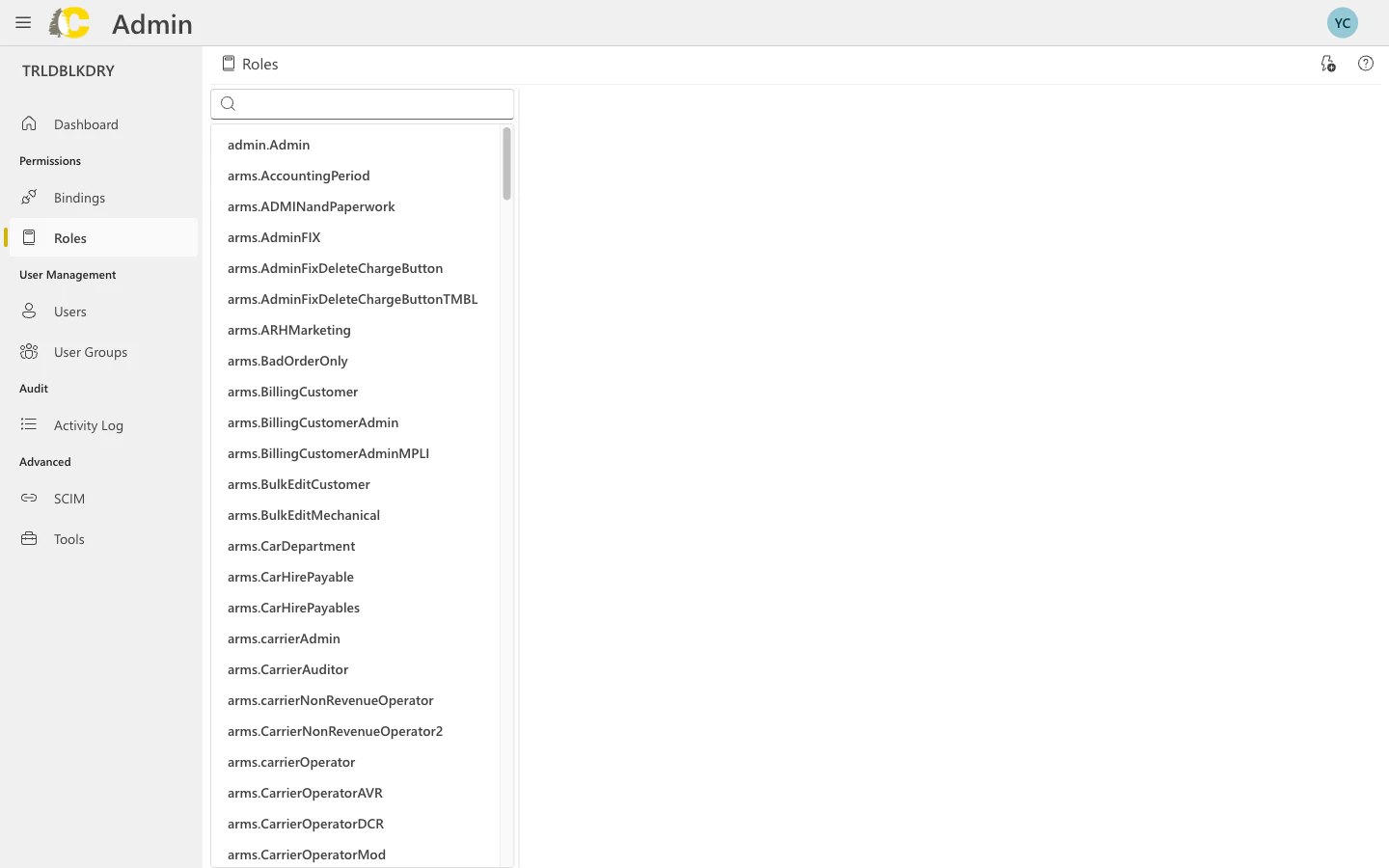
Cedar provides built-in roles for common jobs. These are maintained by Cedar and cover typical use cases.
**Examples:**
* `arms.carrierAdmin` — Full carrier administration
* `arms.carrierOperator` — Day-to-day operations
* `arms.customerAdmin` — Customer-level administration
* `arms.dataWarehouseAdmin` — Data Warehouse settings access (create, list, and read Data Warehouse configuration). Bind this role to a narrowly-scoped user group to limit Data Warehouse access to specific users.
Start with built-in roles if you're unsure what permissions you need.
Cedar ships **[feature sets](/user-docs/iam/feature-sets)** — the columns of the IAM matrix on this page. Each column represents one product feature at one access level (View, Operate, or Manage), and a single checkbox grants every permission that feature needs.
The big win: Cedar maintains the columns. When a feature gains a new capability, every role with that column checked picks it up automatically. Roles built from hand-picked permissions don't get that, so prefer matrix columns whenever possible.
Create custom roles when built-in roles don't match your needs exactly.
**When to use:**
* You need a specific combination of permissions
* Built-in roles grant too much or too little access
* You want to enforce least-privilege access
Keep custom roles focused. A role that does "everything" defeats the purpose of access control.
Build custom roles by checking [feature set](/user-docs/iam/feature-sets) columns in the matrix instead of opening the raw permission picker. That way Cedar's ongoing curation flows through to your role — when a feature gains a new capability later, your role picks it up automatically.
## Find and review roles
Use the search box to find roles by name. Type part of the name to filter the list.
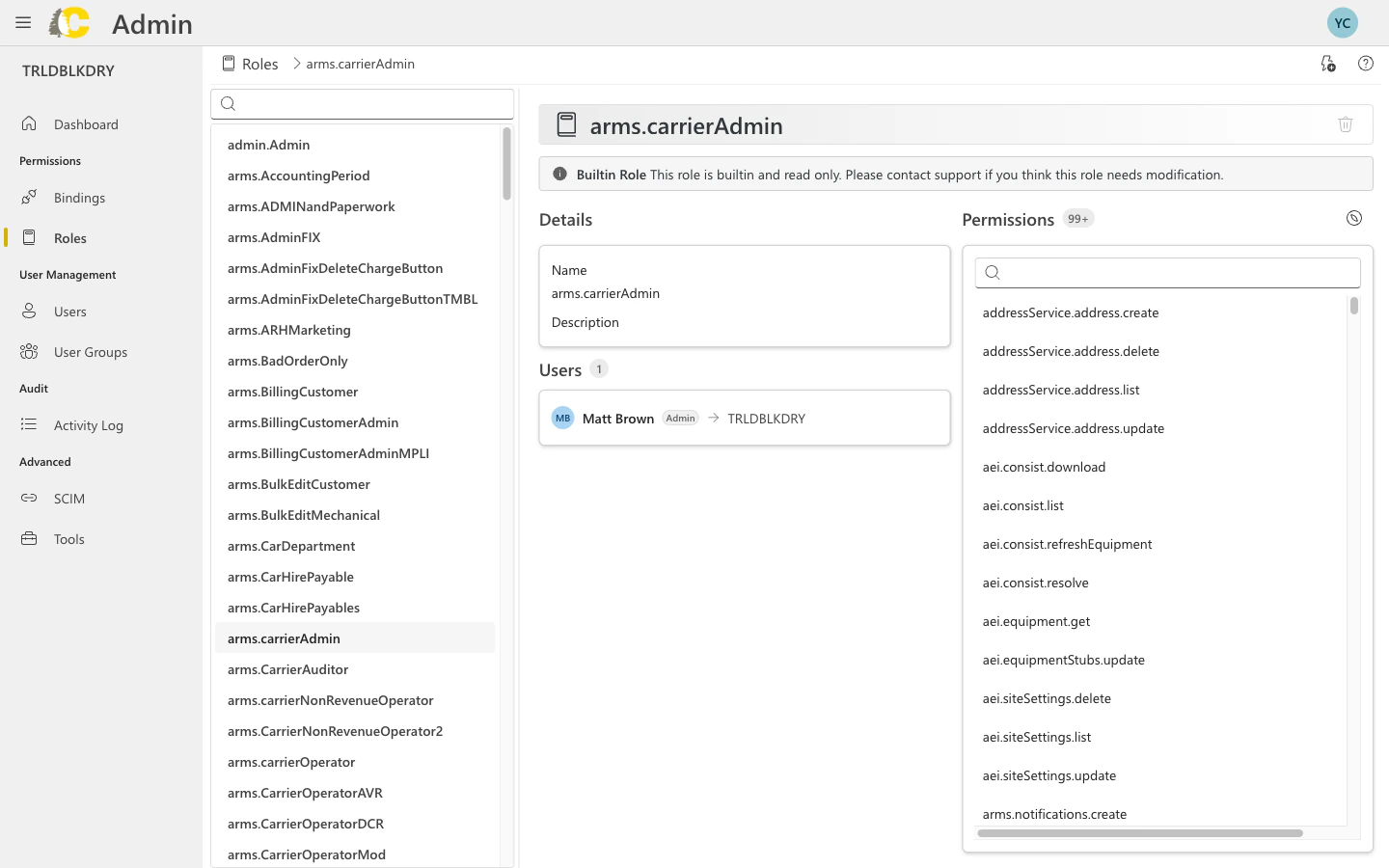
Click on a role to see its details and the permissions it includes.
Check that the role includes the permissions you need—and nothing more.
## Role details
## Types of roles
Cedar provides built-in roles for common jobs. These are maintained by Cedar and cover typical use cases.
**Examples:**
* `arms.carrierAdmin` — Full carrier administration
* `arms.carrierOperator` — Day-to-day operations
* `arms.customerAdmin` — Customer-level administration
* `arms.dataWarehouseAdmin` — Data Warehouse settings access (create, list, and read Data Warehouse configuration). Bind this role to a narrowly-scoped user group to limit Data Warehouse access to specific users.
Start with built-in roles if you're unsure what permissions you need.
Cedar ships **[feature sets](/user-docs/iam/feature-sets)** — the columns of the IAM matrix on this page. Each column represents one product feature at one access level (View, Operate, or Manage), and a single checkbox grants every permission that feature needs.
The big win: Cedar maintains the columns. When a feature gains a new capability, every role with that column checked picks it up automatically. Roles built from hand-picked permissions don't get that, so prefer matrix columns whenever possible.
Create custom roles when built-in roles don't match your needs exactly.
**When to use:**
* You need a specific combination of permissions
* Built-in roles grant too much or too little access
* You want to enforce least-privilege access
Keep custom roles focused. A role that does "everything" defeats the purpose of access control.
Build custom roles by checking [feature set](/user-docs/iam/feature-sets) columns in the matrix instead of opening the raw permission picker. That way Cedar's ongoing curation flows through to your role — when a feature gains a new capability later, your role picks it up automatically.
## Find and review roles
Use the search box to find roles by name. Type part of the name to filter the list.
Click on a role to see its details and the permissions it includes.
Check that the role includes the permissions you need—and nothing more.
## Role details
 ## Edit role permissions
Click on any role to view and edit its permissions. The permissions panel shows all the capabilities included in the role.
## Edit role permissions
Click on any role to view and edit its permissions. The permissions panel shows all the capabilities included in the role.
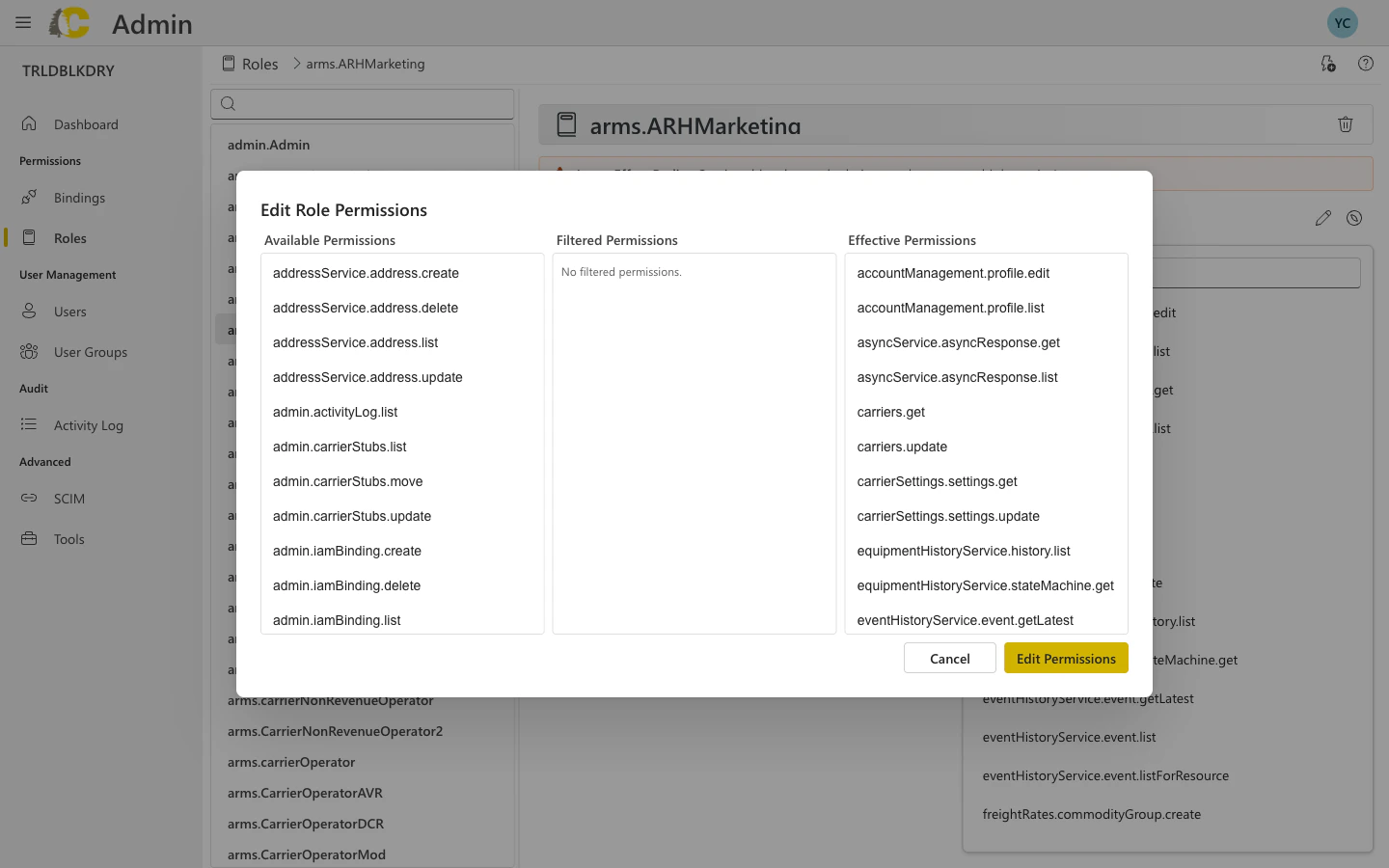 The permissions view displays:
* **Role name and parent** — the role's identity and inheritance
* **Permission list** — all permissions included in this role
* **Permission groups** — permissions organized by feature area
Use the search box to quickly find specific permissions within a role.
## Create a custom role
Select **New role** from the Roles page.
Give your role a clear name and description. The name should indicate what the role allows.
| ✅ Good | ❌ Avoid |
| ----------------- | ------------------ |
| Inventory Viewer | Custom Role 1 |
| Billing Read-Only | John's Permissions |
Choose the specific permissions this role should include. Only select what's needed.
Save the role, then create a **binding** to grant it to a group.
The permissions view displays:
* **Role name and parent** — the role's identity and inheritance
* **Permission list** — all permissions included in this role
* **Permission groups** — permissions organized by feature area
Use the search box to quickly find specific permissions within a role.
## Create a custom role
Select **New role** from the Roles page.
Give your role a clear name and description. The name should indicate what the role allows.
| ✅ Good | ❌ Avoid |
| ----------------- | ------------------ |
| Inventory Viewer | Custom Role 1 |
| Billing Read-Only | John's Permissions |
Choose the specific permissions this role should include. Only select what's needed.
Save the role, then create a **binding** to grant it to a group.
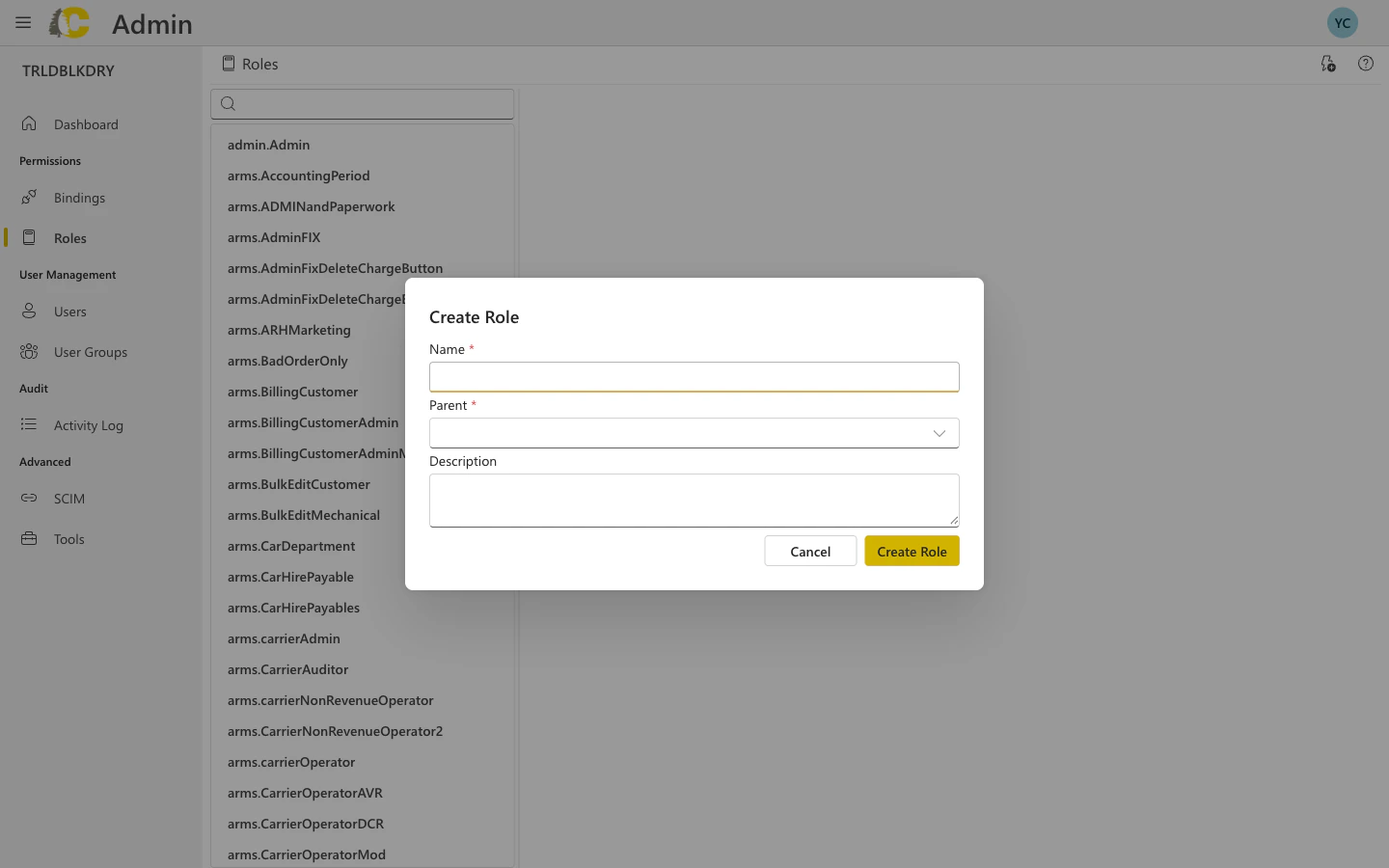 ### Dialog fields explained
| Field | Required | Description |
| --------------- | -------- | ------------------------------------------------------------------ |
| **Name** | Yes | Unique identifier for the role (e.g., `mycompany.inventoryViewer`) |
| **Parent** | Yes | The parent role this role inherits from |
| **Description** | No | Brief description of what this role allows |
Custom roles inherit permissions from their parent role. Choose a parent that has the base permissions you need, then the child role can add or restrict further.
## Best practices
Built-in roles cover most common scenarios. Only create custom roles when you have a specific need that isn't met.
Each role should represent a clear job function. If you find yourself adding unrelated permissions, consider creating multiple roles instead.
Anyone should be able to understand what a role does from its name. Include the resource type and action level (e.g., "Inventory Editor", "Billing Viewer").
For custom roles, add a clear description explaining what the role is for and who should have it.
## Related: Admin Portal
Connect roles to groups
Manage the teams that get roles
Key terms explained
Track role changes
## Related: IAM Concepts
The columns of this page's IAM matrix — Cedar curates them so your roles stay current
How roles fit into the IAM policy model
Deep dive into permissions and conditions
Customer-specific role examples
### Dialog fields explained
| Field | Required | Description |
| --------------- | -------- | ------------------------------------------------------------------ |
| **Name** | Yes | Unique identifier for the role (e.g., `mycompany.inventoryViewer`) |
| **Parent** | Yes | The parent role this role inherits from |
| **Description** | No | Brief description of what this role allows |
Custom roles inherit permissions from their parent role. Choose a parent that has the base permissions you need, then the child role can add or restrict further.
## Best practices
Built-in roles cover most common scenarios. Only create custom roles when you have a specific need that isn't met.
Each role should represent a clear job function. If you find yourself adding unrelated permissions, consider creating multiple roles instead.
Anyone should be able to understand what a role does from its name. Include the resource type and action level (e.g., "Inventory Editor", "Billing Viewer").
For custom roles, add a clear description explaining what the role is for and who should have it.
## Related: Admin Portal
Connect roles to groups
Manage the teams that get roles
Key terms explained
Track role changes
## Related: IAM Concepts
The columns of this page's IAM matrix — Cedar curates them so your roles stay current
How roles fit into the IAM policy model
Deep dive into permissions and conditions
Customer-specific role examples