> ## Documentation Index
> Fetch the complete documentation index at: https://docs.cedarai.com/llms.txt
> Use this file to discover all available pages before exploring further.
# Tools & API Keys
> Advanced settings for organizations, feature enablements, and API keys.
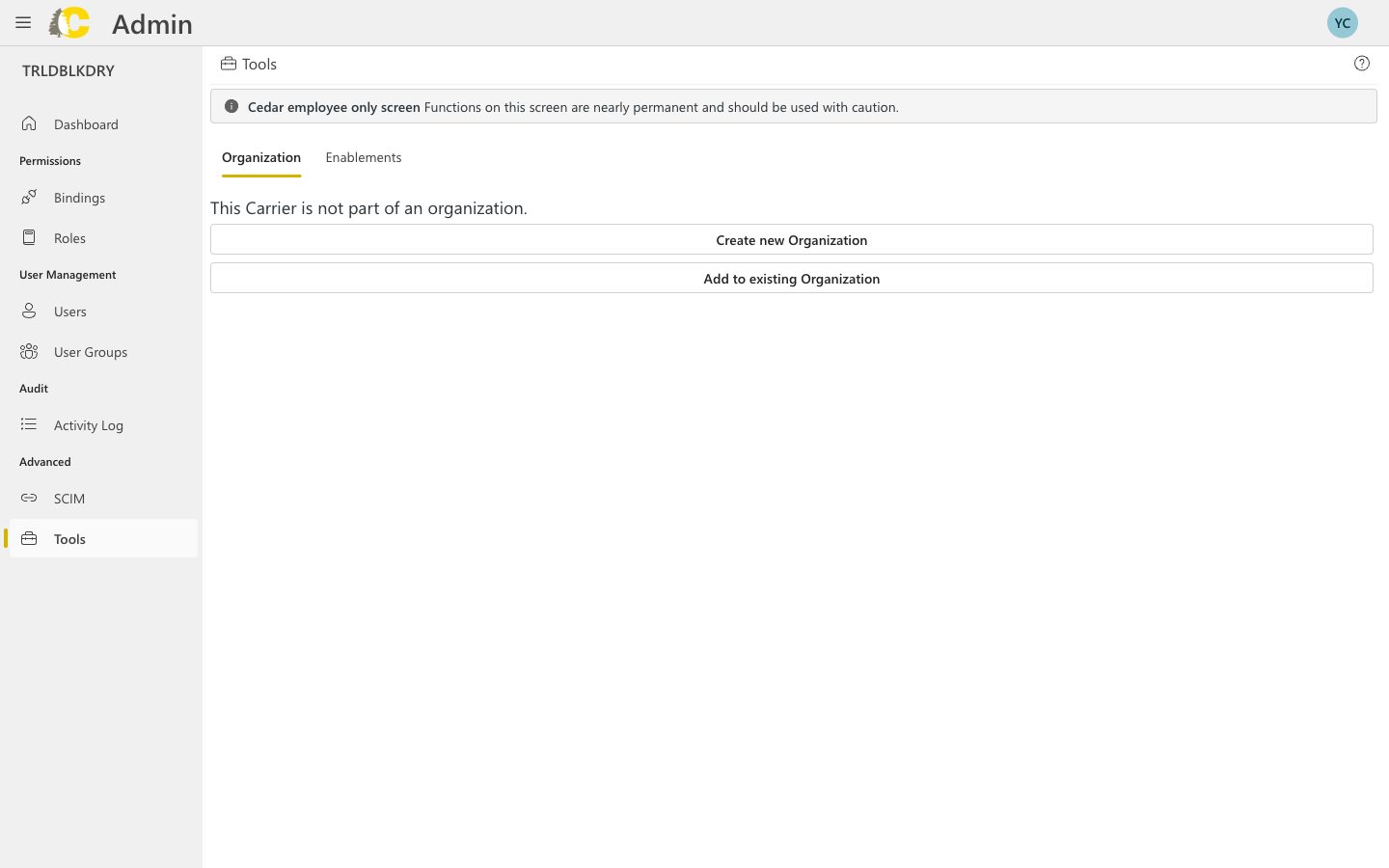
The Tools page contains advanced settings. Some functions are currently restricted to Cedar employees. If you see a warning banner, contact Support before making changes.
These advanced options will be available to all customers in a future release.
 ## Available tools
Manage how your carrier relates to organizations.
**Available actions:**
* **Create new Organization** — set up a new organization that can contain multiple carriers
* **Add to existing Organization** — attach this carrier to an existing organization
Organizations allow you to manage multiple carriers under a single umbrella with shared settings and access controls.
Control which advanced features are available for your carrier.
This tab may not be visible for all accounts. If available, it allows you to:
* Enable/disable specific features
* Configure feature-specific settings
Changing enablements can affect your users immediately. Review the impact before making changes.
Feature enablements are subject to pricing and contract terms. Contact your account representative for details on available features and associated costs.
Once Cedar sets up your initial organization structure, you can manage it yourself. See the [Organization](/user-docs/admin/organization) page for details on managing your hierarchy, creating layers, and assigning access.
***
## API Key Management
**Coming Soon** — API key management will be available in a future release of the Admin Portal. The information below describes the planned functionality.
### Create an API key
Navigate to the API Keys section and click **Create**.
Enter a clear description so you know what this key is for.
**Good descriptions:**
* "Production ERP integration"
* "Development testing - John's team"
* "Warehouse management system sync"
Set up security options:
* **IP allowlist** — restrict which IP addresses can use this key
* **Expiration** — set when the key should automatically expire
* **Scopes** — limit what the key can access (if available)
The API key is only shown once. Copy it immediately and store it securely.
Never share API keys in code repositories, emails, or chat messages. Use secure secret management.
### API key best practices
Anyone reviewing API keys should understand what each key is for without having to ask.
Keys that don't expire are a security risk. Set reasonable expiration dates and rotate keys regularly.
When possible, restrict API keys to specific IP addresses. This limits damage if a key is compromised.
Regularly audit your API keys and revoke any that are no longer in use.
Create separate keys for each integration or system. This makes it easier to revoke access without affecting other systems.
## When to contact Support
Before creating or modifying organization structures
If you're unsure about enabling/disabling features
If you need help with API key configuration
If you see a warning about restricted functions
## Related pages
Manage your organization hierarchy and layers
Learn how to use the Cedar API
Review changes to settings
Key terms explained
## Available tools
Manage how your carrier relates to organizations.
**Available actions:**
* **Create new Organization** — set up a new organization that can contain multiple carriers
* **Add to existing Organization** — attach this carrier to an existing organization
Organizations allow you to manage multiple carriers under a single umbrella with shared settings and access controls.
Control which advanced features are available for your carrier.
This tab may not be visible for all accounts. If available, it allows you to:
* Enable/disable specific features
* Configure feature-specific settings
Changing enablements can affect your users immediately. Review the impact before making changes.
Feature enablements are subject to pricing and contract terms. Contact your account representative for details on available features and associated costs.
Once Cedar sets up your initial organization structure, you can manage it yourself. See the [Organization](/user-docs/admin/organization) page for details on managing your hierarchy, creating layers, and assigning access.
***
## API Key Management
**Coming Soon** — API key management will be available in a future release of the Admin Portal. The information below describes the planned functionality.
### Create an API key
Navigate to the API Keys section and click **Create**.
Enter a clear description so you know what this key is for.
**Good descriptions:**
* "Production ERP integration"
* "Development testing - John's team"
* "Warehouse management system sync"
Set up security options:
* **IP allowlist** — restrict which IP addresses can use this key
* **Expiration** — set when the key should automatically expire
* **Scopes** — limit what the key can access (if available)
The API key is only shown once. Copy it immediately and store it securely.
Never share API keys in code repositories, emails, or chat messages. Use secure secret management.
### API key best practices
Anyone reviewing API keys should understand what each key is for without having to ask.
Keys that don't expire are a security risk. Set reasonable expiration dates and rotate keys regularly.
When possible, restrict API keys to specific IP addresses. This limits damage if a key is compromised.
Regularly audit your API keys and revoke any that are no longer in use.
Create separate keys for each integration or system. This makes it easier to revoke access without affecting other systems.
## When to contact Support
Before creating or modifying organization structures
If you're unsure about enabling/disabling features
If you need help with API key configuration
If you see a warning about restricted functions
## Related pages
Manage your organization hierarchy and layers
Learn how to use the Cedar API
Review changes to settings
Key terms explained