> ## Documentation Index
> Fetch the complete documentation index at: https://docs.cedarai.com/llms.txt
> Use this file to discover all available pages before exploring further.
# Inventory
> Browse stations, select cars, and move them to another track in ARMS Mobile.
The **Inventory** tab is the yard view. Start from the station list, open a station, select cars, then move them.
## Browse the station list
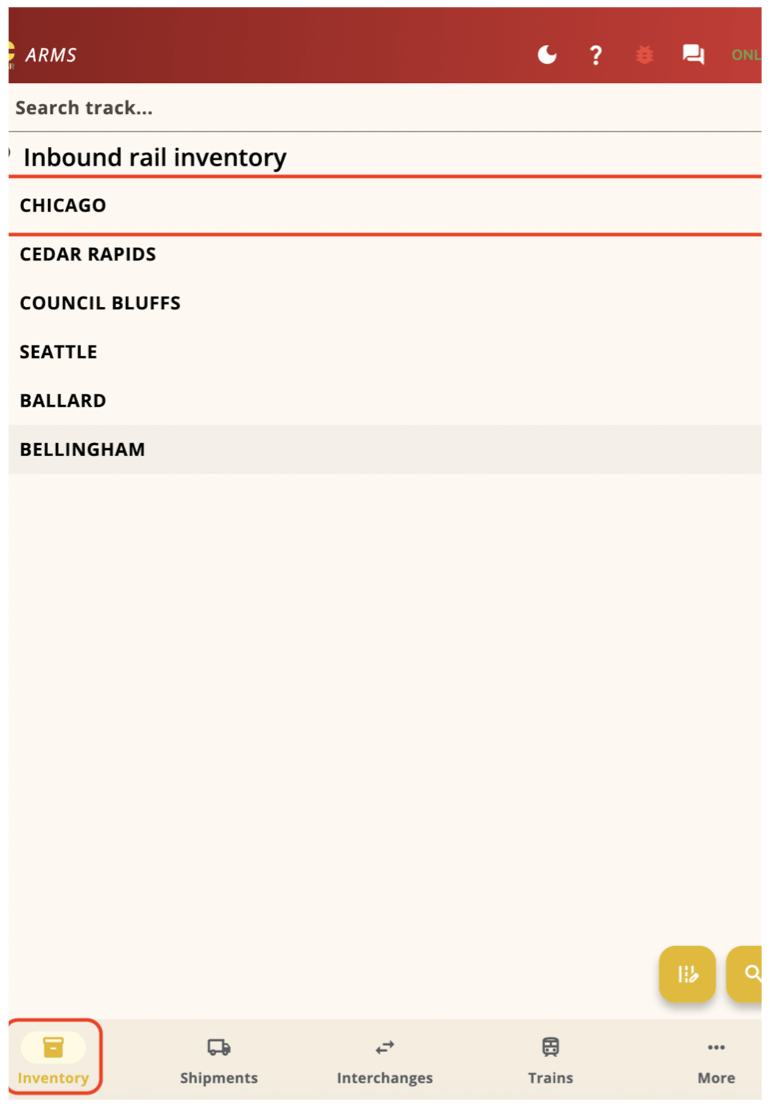
The Inventory tab lists every station in your network. Tap the star on the right to favorite a station — favorites move to the top.
 ## Expand a station's tracks
Tap the arrow to the left of a station name to expand it. Tracks appear inline so you can see what's there without leaving the list.
## Expand a station's tracks
Tap the arrow to the left of a station name to expand it. Tracks appear inline so you can see what's there without leaving the list.
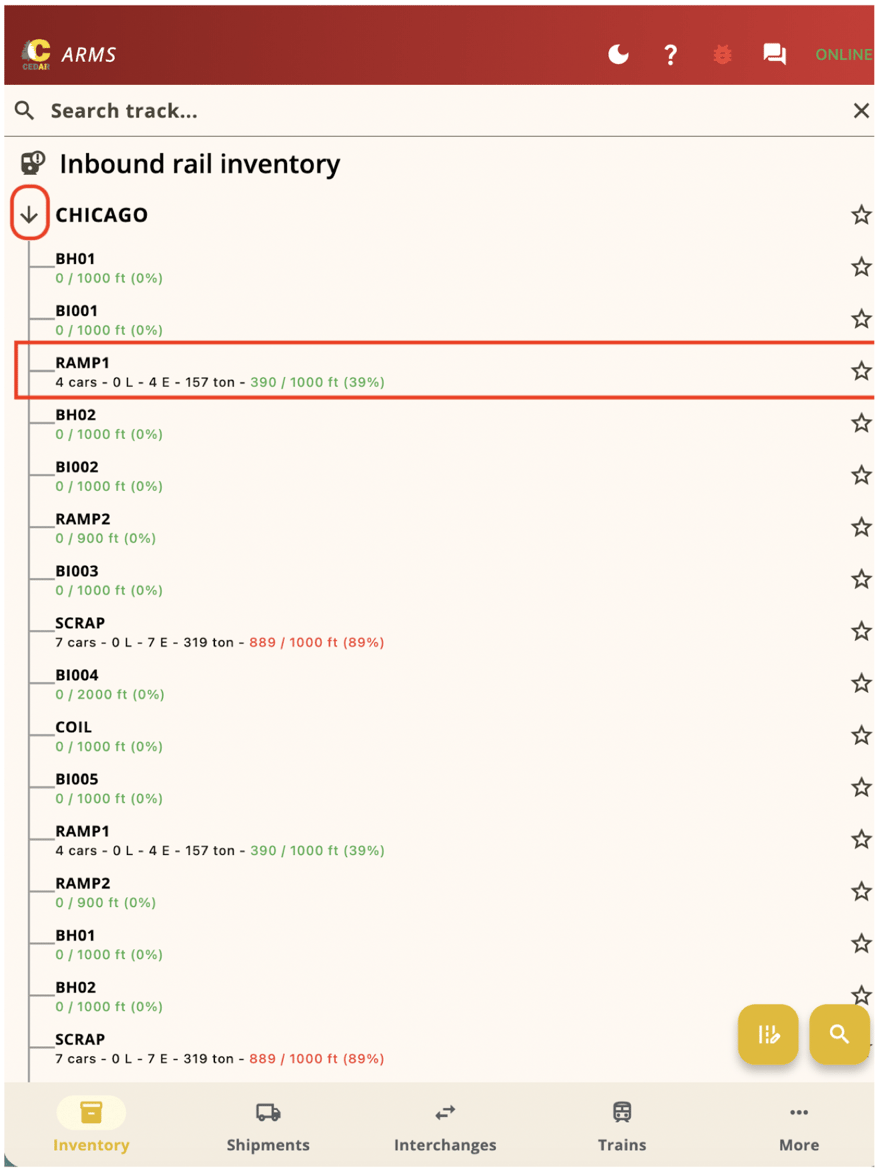 1. The arrow flips to down when the station is expanded.
2. Each track lists its current length and capacity.
3. Tap a track name to open that track, or tap the arrow again to collapse the station.
## Open a station
To work the cars in a station, tap the **station name** (not the arrow). The full inventory screen opens.
Cars are grouped by track. Each track has a yellow header bar with the track name.
1. The arrow flips to down when the station is expanded.
2. Each track lists its current length and capacity.
3. Tap a track name to open that track, or tap the arrow again to collapse the station.
## Open a station
To work the cars in a station, tap the **station name** (not the arrow). The full inventory screen opens.
Cars are grouped by track. Each track has a yellow header bar with the track name.
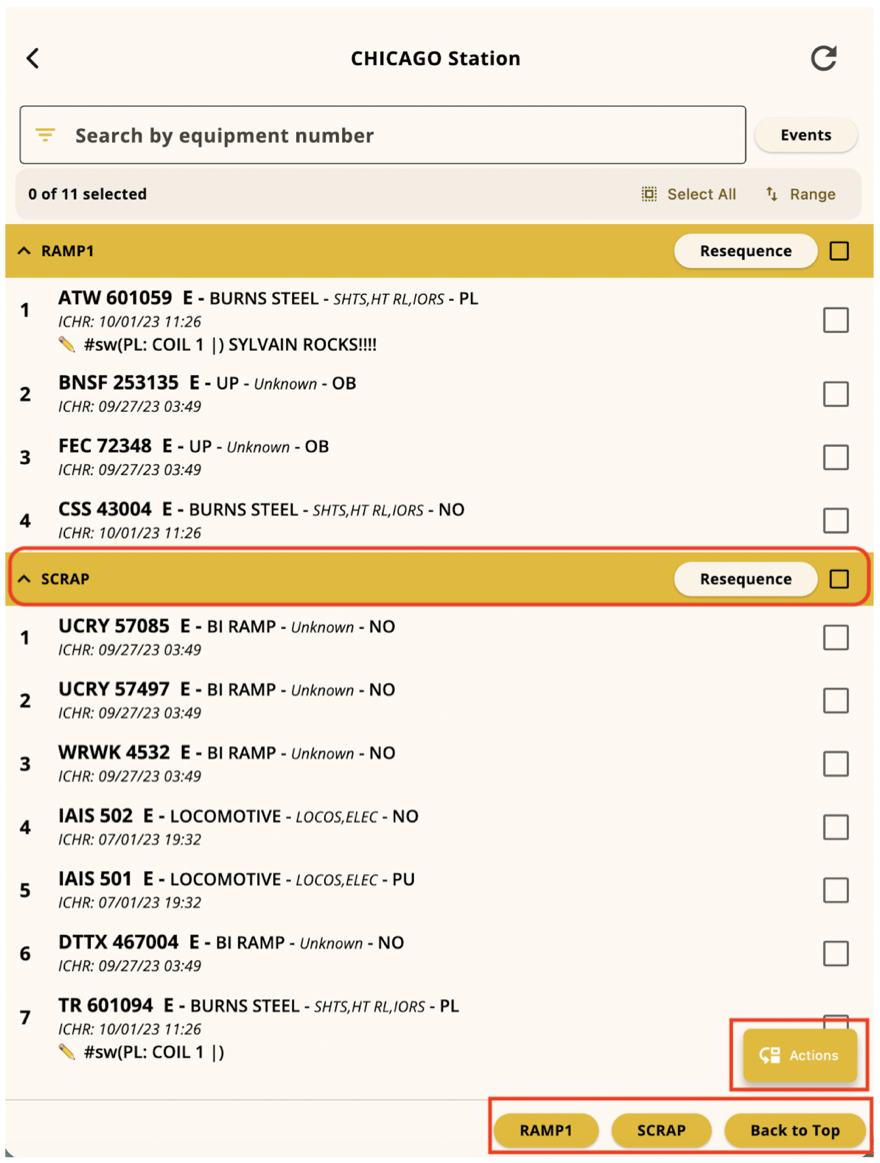 * **Track header** — tap the arrow to collapse or expand the track. Tap the checkbox on the right to select every car on that track. Tap **Resequence** to change car order.
* **Actions** — opens the menu for selected cars (Move Cars, Print Paperwork, Load Car, and more).
* **Track navigation** — swipe up or down to see more cars and tracks.
## Scroll between tracks
The car list is one long, scrollable list. The current track header sticks to the top so you always know which track you are looking at.
* **Track header** — tap the arrow to collapse or expand the track. Tap the checkbox on the right to select every car on that track. Tap **Resequence** to change car order.
* **Actions** — opens the menu for selected cars (Move Cars, Print Paperwork, Load Car, and more).
* **Track navigation** — swipe up or down to see more cars and tracks.
## Scroll between tracks
The car list is one long, scrollable list. The current track header sticks to the top so you always know which track you are looking at.
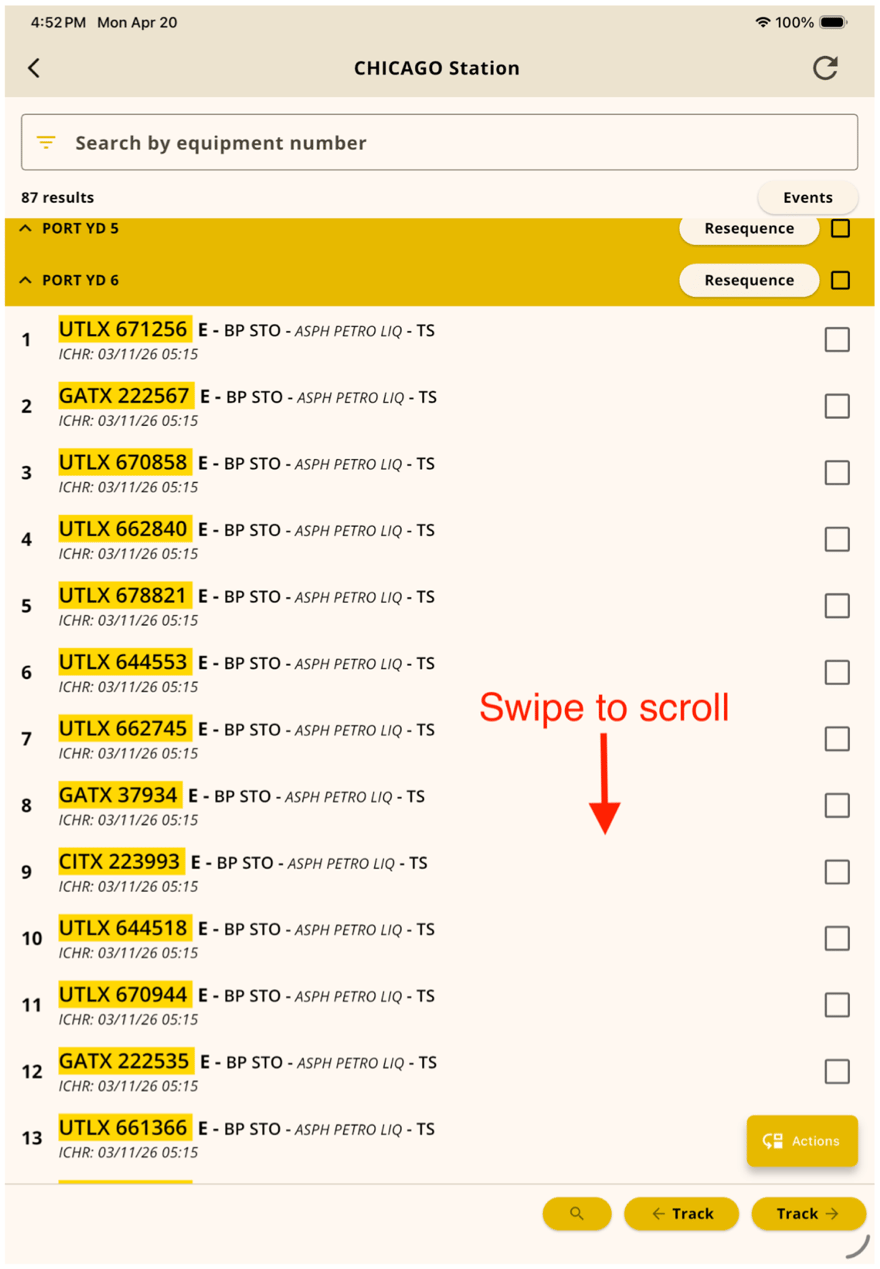 To jump straight to a specific track, use the **← Track / Track →** buttons at the bottom of the screen.
## Select cars
Tap a car to select it. Selected rows highlight, and a number appears in the right-hand checkbox to show selection order. Tap the row again to deselect it.
To jump straight to a specific track, use the **← Track / Track →** buttons at the bottom of the screen.
## Select cars
Tap a car to select it. Selected rows highlight, and a number appears in the right-hand checkbox to show selection order. Tap the row again to deselect it.
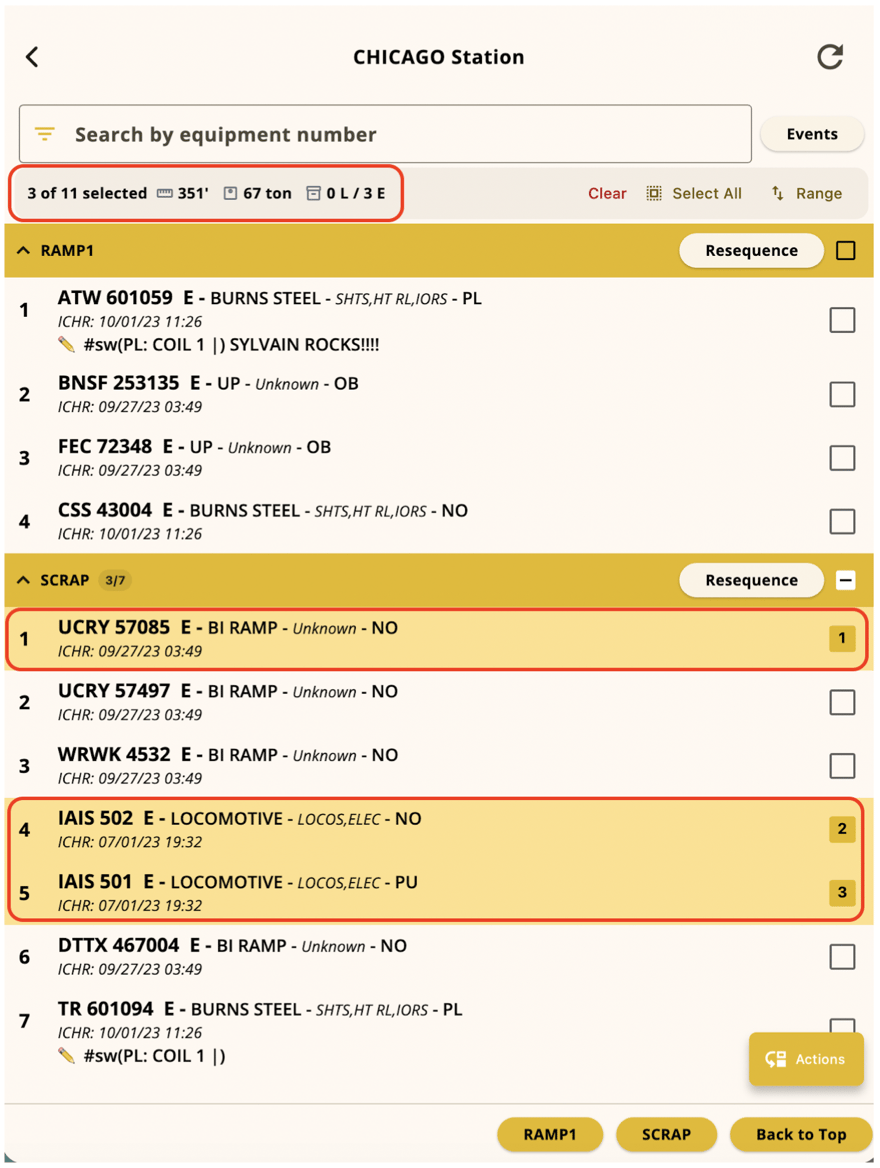 The summary at the top updates as you select: total length, total weight, and loaded vs empty (for example **0 L / 2 E** means 0 loaded, 2 empty).
### Select every car on a track
Tap the checkbox on the right end of the track header. The checkbox fills in and every car on that track is selected.
The summary at the top updates as you select: total length, total weight, and loaded vs empty (for example **0 L / 2 E** means 0 loaded, 2 empty).
### Select every car on a track
Tap the checkbox on the right end of the track header. The checkbox fills in and every car on that track is selected.
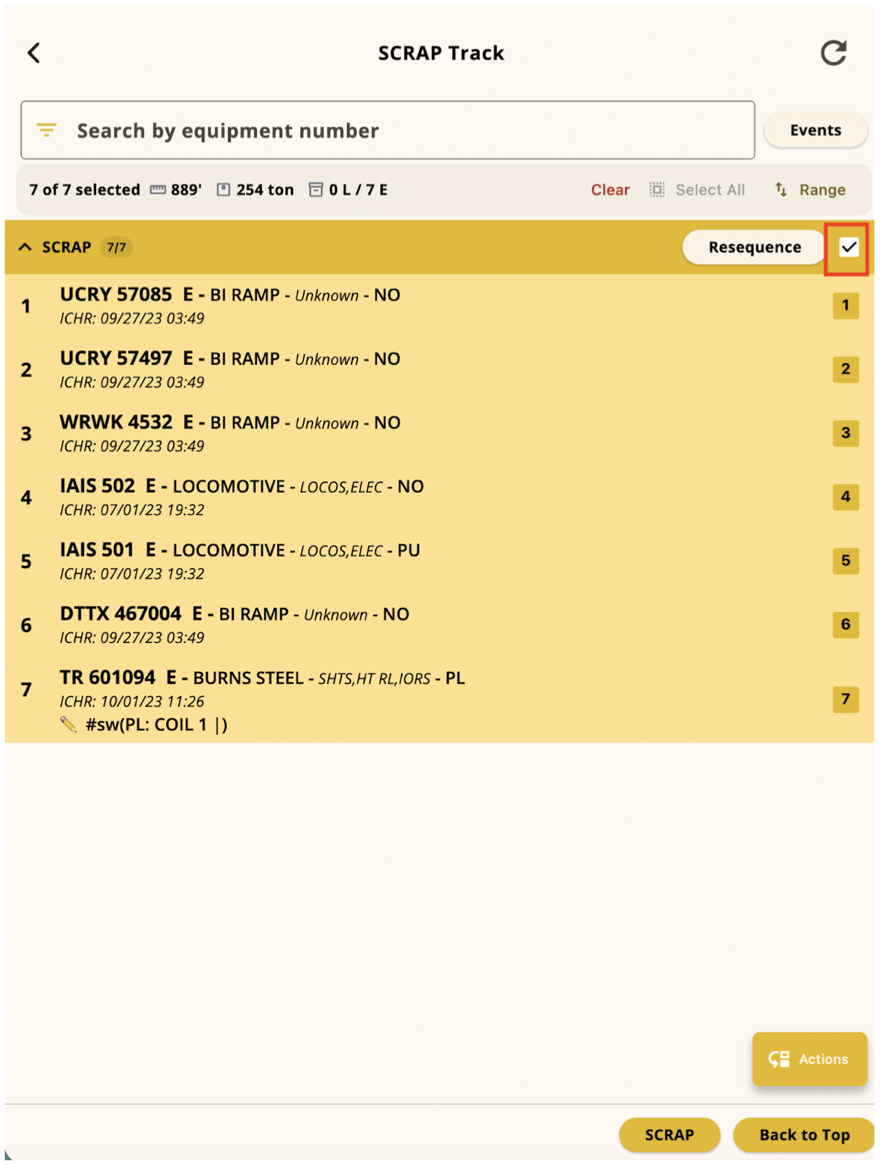 Tap the checkbox again to deselect the whole track at once.
## Move cars
Once one or more cars are selected, move them to another track.
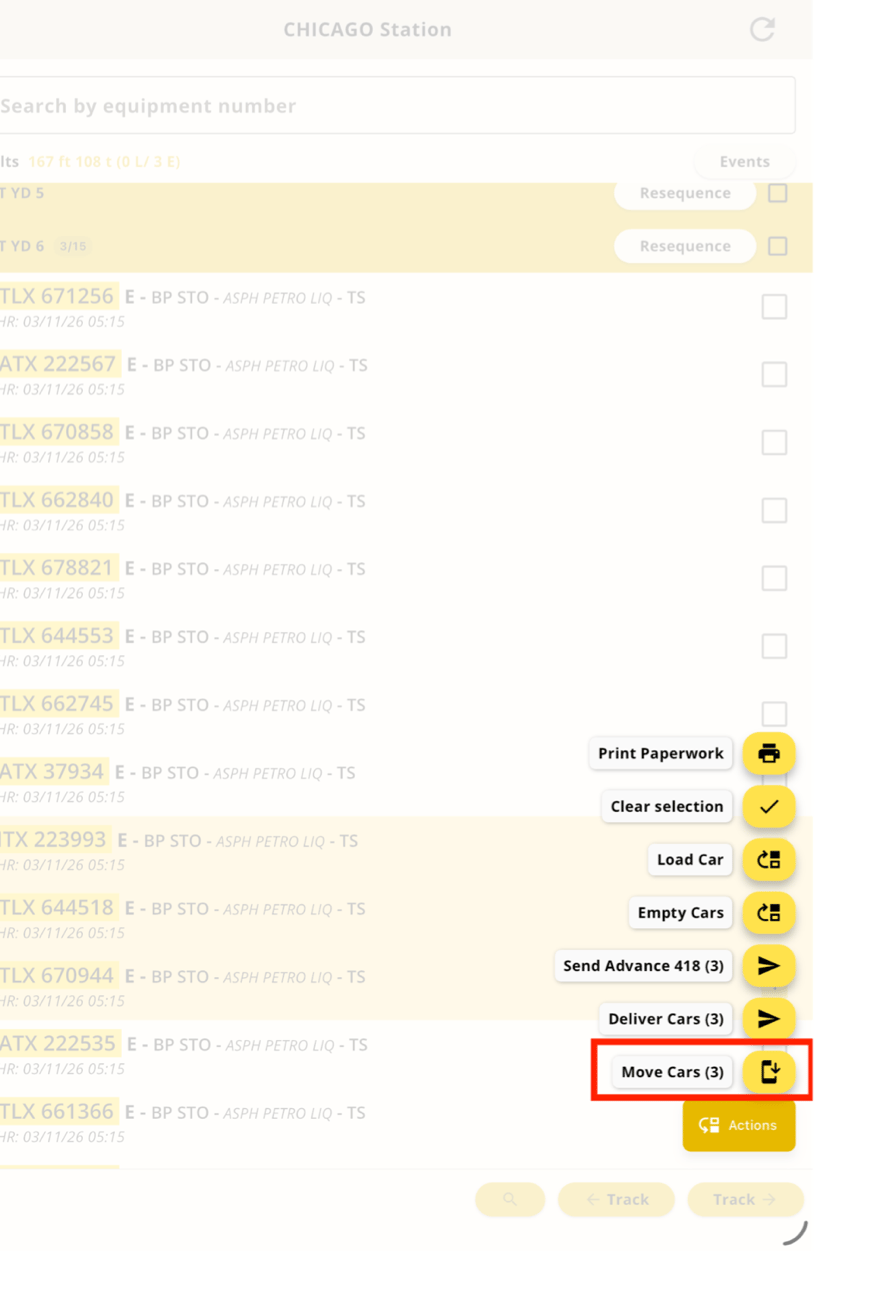
Tap **Actions** on the bottom-right. The number in parentheses is how many cars you have selected. Then tap **Move Cars**.
Tap the checkbox again to deselect the whole track at once.
## Move cars
Once one or more cars are selected, move them to another track.
Tap **Actions** on the bottom-right. The number in parentheses is how many cars you have selected. Then tap **Move Cars**.
 The Move Cars window shows the cars to move at the top and destination tracks below.
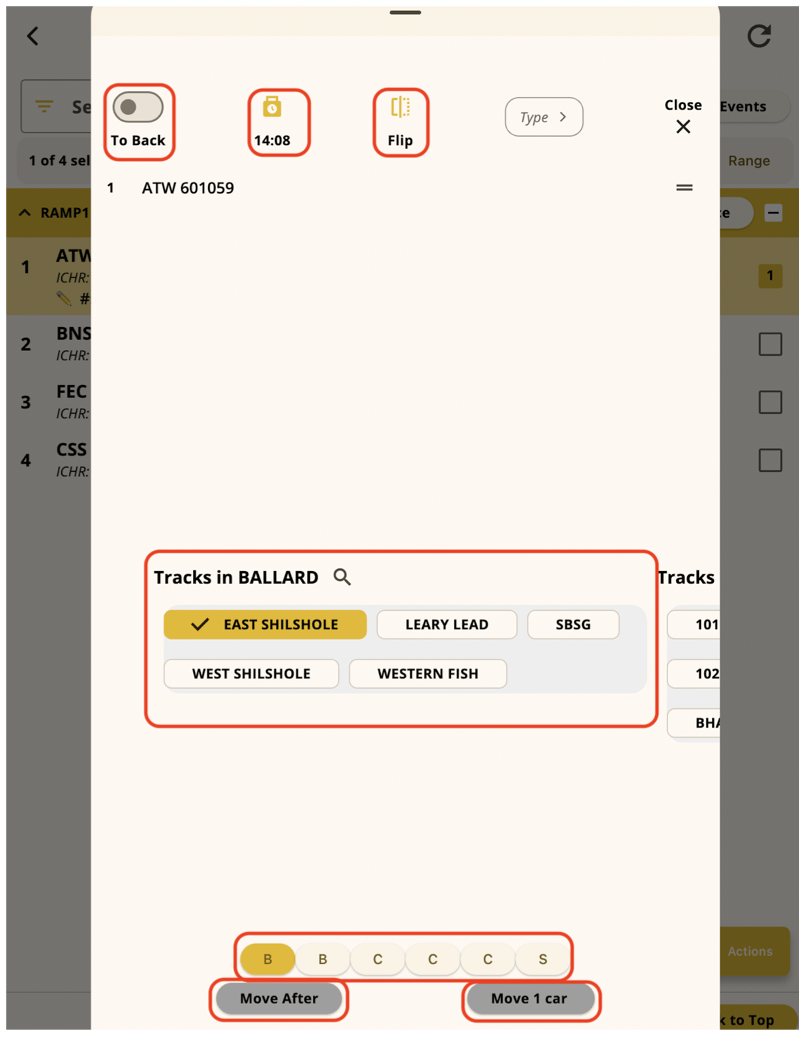 * Drag the handle on the right to reorder cars if needed.
* Scroll the destination tracks, or tap a letter to jump to tracks that start with that letter.
* Swipe left or right anywhere in the dialog to switch to a different station.
* Tap the clock icon to edit the move time.
Tap a track name. The selected track turns yellow with a checkmark, and the bottom button turns green with the destination (for example **Move 1 car to Leary Lead**). Tap it to complete the move.
* Drag the handle on the right to reorder cars if needed.
* Scroll the destination tracks, or tap a letter to jump to tracks that start with that letter.
* Swipe left or right anywhere in the dialog to switch to a different station.
* Tap the clock icon to edit the move time.
Tap a track name. The selected track turns yellow with a checkmark, and the bottom button turns green with the destination (for example **Move 1 car to Leary Lead**). Tap it to complete the move.
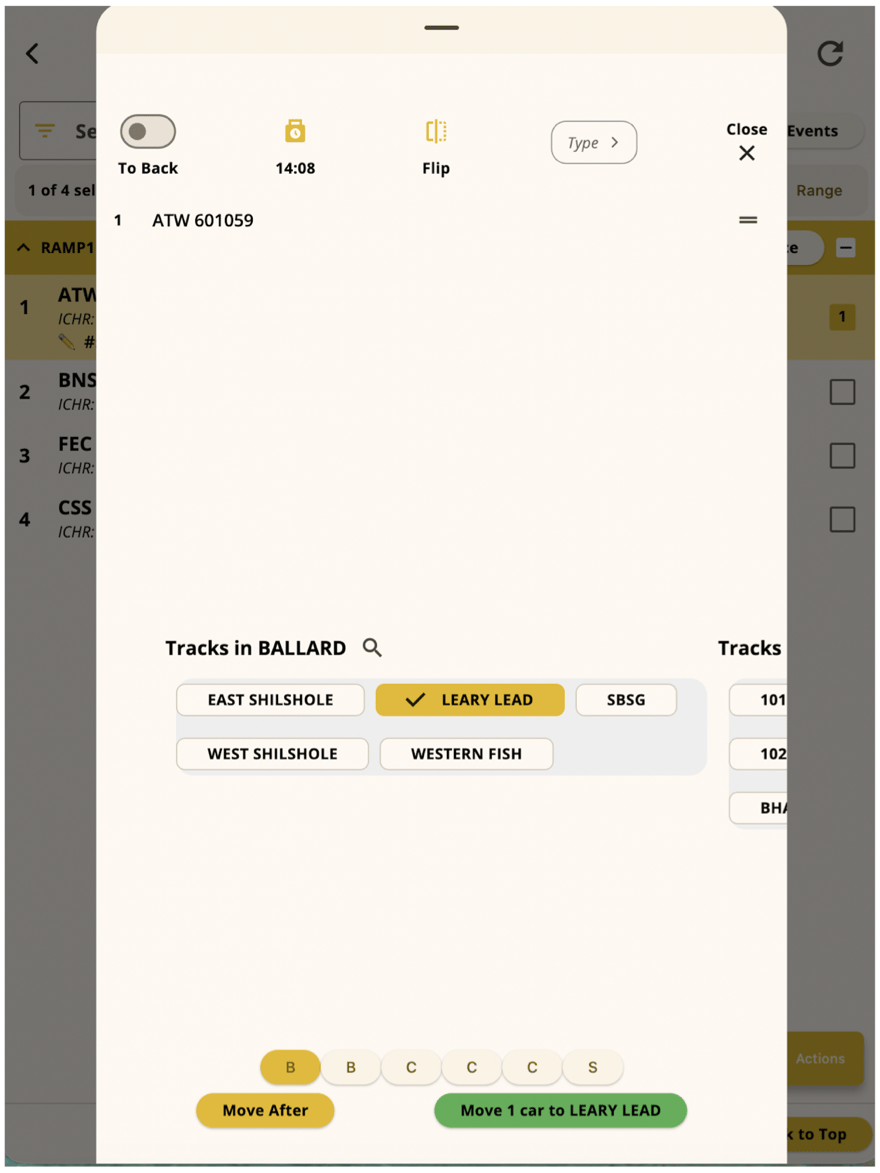 Use **Move After** to insert the cars after a specific car on the destination track, instead of adding them at the end.
## Related pages
Tabs, screen order, and switching carriers
Receive and create interchanges
Pick up and set out from a train
## Related topics
- [Stale Inventory Cleanup](/user-docs/arms/stale-inventory-cleanup.md)
- [List railcar inventory](/api-reference/list-railcar-inventory.md)
- [Update railcar inventory (move equipment)](/api-reference/update-railcar-inventory-move-equipment.md)
- [Customer Portal and IAM](/user-docs/iam/customer-portal.md)
- [MCP data handling](/user-docs/api-reference/mcp.md)
Use **Move After** to insert the cars after a specific car on the destination track, instead of adding them at the end.
## Related pages
Tabs, screen order, and switching carriers
Receive and create interchanges
Pick up and set out from a train
## Related topics
- [Stale Inventory Cleanup](/user-docs/arms/stale-inventory-cleanup.md)
- [List railcar inventory](/api-reference/list-railcar-inventory.md)
- [Update railcar inventory (move equipment)](/api-reference/update-railcar-inventory-move-equipment.md)
- [Customer Portal and IAM](/user-docs/iam/customer-portal.md)
- [MCP data handling](/user-docs/api-reference/mcp.md)