> ## Documentation Index
> Fetch the complete documentation index at: https://docs.cedarai.com/llms.txt
> Use this file to discover all available pages before exploring further.
# Cedar Mobile
> Get around the ARMS mobile app: tabs, screen order, and switching carriers.
Cedar Mobile is the field app for ARMS. Use it to work inventory, receive interchanges, and run trains from a phone or tablet.
## Sign in
Open ARMS Mobile and sign in with your Cedar account. If your company uses SSO, follow the [mobile SSO guide](/user-docs/sso/mobile).
## The tabs
When you open the app, five tabs sit along the bottom of the screen. The selected tab is highlighted in yellow.
| Tab | What it's for |
| - | - |
| **Inventory** | View and move cars in your yards |
| **Shipments** | Manage shipments (when enabled for your carrier) |
| **Trains** | Manage trains and jobs |
| **Warehouse** | Warehouse operations (when enabled for your carrier) |
| **More** | Everything else, including Interchanges, Profile, and screen order |
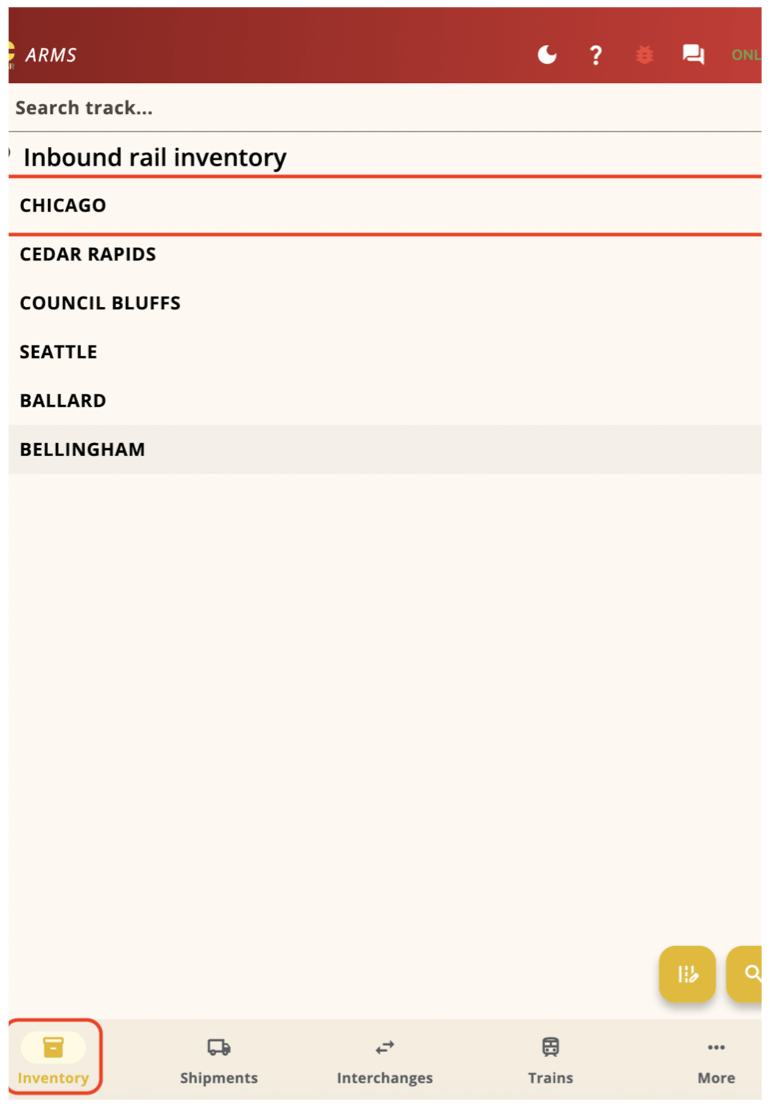 Scroll the station list, or use the search box at the top to find a station by name.
This guide covers **Inventory**, **Interchanges**, and **Trains**. Shipments and Warehouse appear when your carrier has those products turned on.
## Change the tab order
Open **More → Configure screens** and drag the screens into the order you want. Use this to keep Interchanges on the tab bar if you receive cars every day.
## Switch carriers
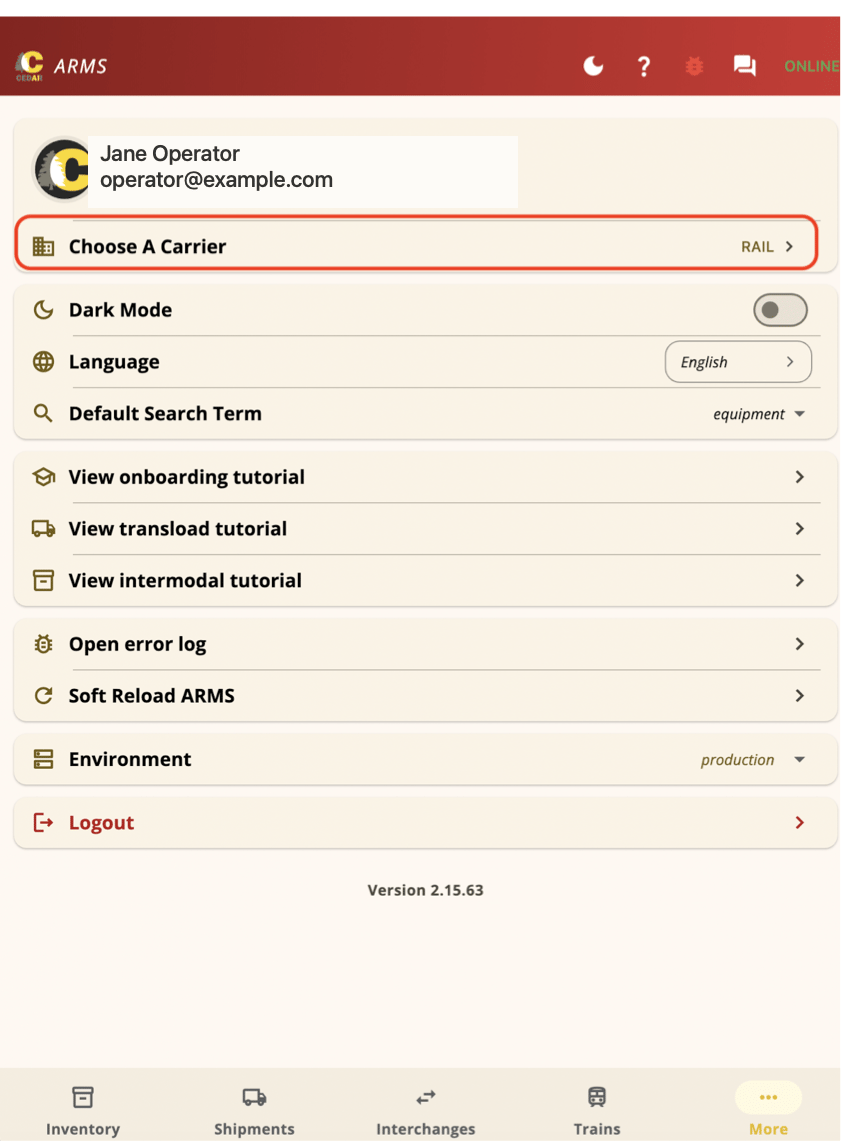
If you work more than one railroad, change the active carrier from Profile.
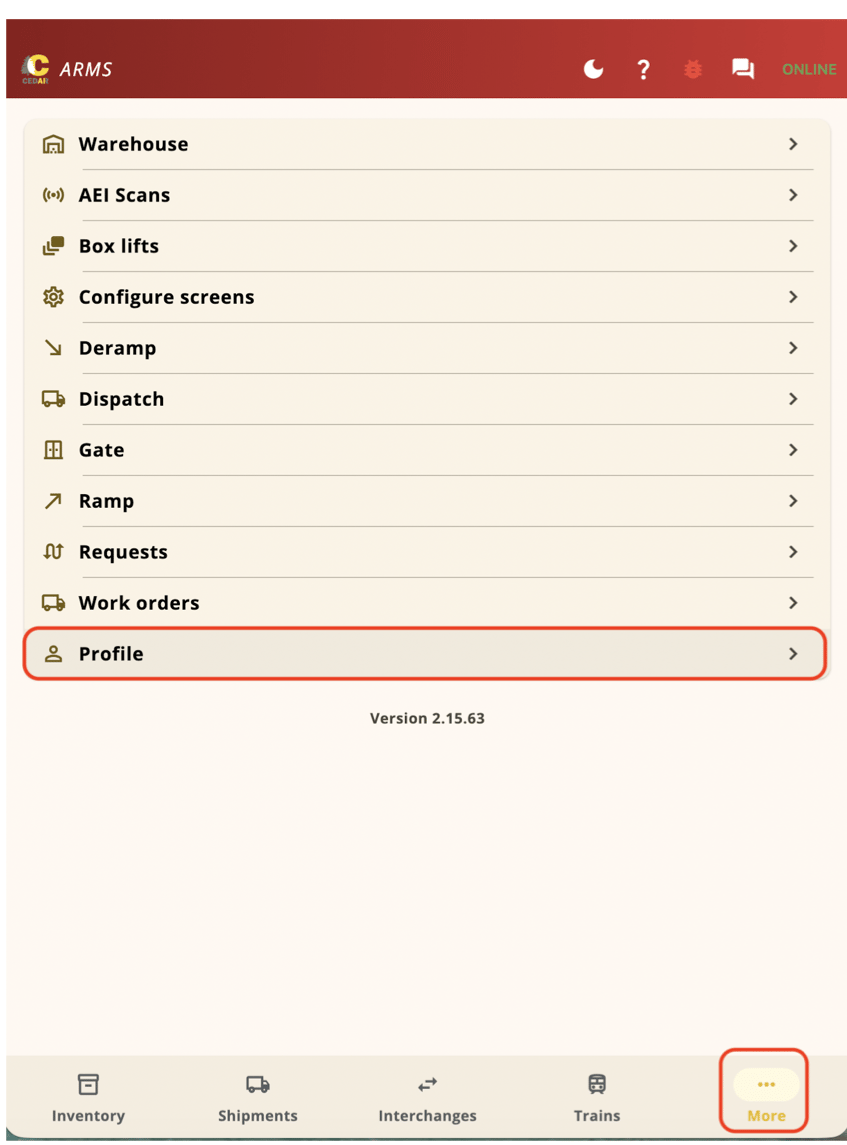
Tap the **More** tab, then tap **Profile**.
Scroll the station list, or use the search box at the top to find a station by name.
This guide covers **Inventory**, **Interchanges**, and **Trains**. Shipments and Warehouse appear when your carrier has those products turned on.
## Change the tab order
Open **More → Configure screens** and drag the screens into the order you want. Use this to keep Interchanges on the tab bar if you receive cars every day.
## Switch carriers
If you work more than one railroad, change the active carrier from Profile.
Tap the **More** tab, then tap **Profile**.
 Tap **Choose a carrier**, pick the railroad, then tap **Save**.
 ## Quick reference
| To do this | Go here |
| - | - |
| See cars in a yard | Inventory tab → tap a station |
| Jump between tracks | Use **← Track / Track →** at the bottom |
| Move cars to another track | Select cars → **Actions → Move Cars** |
| Open the interchanges list | Interchanges tab, or **More → Interchanges** |
| Receive an interchange | Open it → Select All (or pick cars) → **Actions → Inbound Interchange** |
| Skip a car when receiving | Leave its checkbox unchecked |
| Create an interchange by hand | Interchanges list → **+ Manual Interchange** |
| Switch compact / expanded view | Tap the view-toggle icon on the left of the yellow selection bar |
## Related pages
Browse stations, select cars, and move them to another track
Review, receive, and create interchanges
Train-set, pick up, set out, depart, and arrive
Sign in with Microsoft, Google, or Okta
## Related topics
- [ARMS Mobile](/user-docs/sso/mobile.md)
- [Introduction](/user-docs/index.md)
- [Inventory](/user-docs/mobile/inventory.md)
- [Interchanges](/user-docs/mobile/interchanges.md)
- [Trains & Jobs](/user-docs/mobile/trains.md)
## Quick reference
| To do this | Go here |
| - | - |
| See cars in a yard | Inventory tab → tap a station |
| Jump between tracks | Use **← Track / Track →** at the bottom |
| Move cars to another track | Select cars → **Actions → Move Cars** |
| Open the interchanges list | Interchanges tab, or **More → Interchanges** |
| Receive an interchange | Open it → Select All (or pick cars) → **Actions → Inbound Interchange** |
| Skip a car when receiving | Leave its checkbox unchecked |
| Create an interchange by hand | Interchanges list → **+ Manual Interchange** |
| Switch compact / expanded view | Tap the view-toggle icon on the left of the yellow selection bar |
## Related pages
Browse stations, select cars, and move them to another track
Review, receive, and create interchanges
Train-set, pick up, set out, depart, and arrive
Sign in with Microsoft, Google, or Okta
## Related topics
- [ARMS Mobile](/user-docs/sso/mobile.md)
- [Introduction](/user-docs/index.md)
- [Inventory](/user-docs/mobile/inventory.md)
- [Interchanges](/user-docs/mobile/interchanges.md)
- [Trains & Jobs](/user-docs/mobile/trains.md)