> ## Documentation Index
> Fetch the complete documentation index at: https://docs.cedarai.com/llms.txt
> Use this file to discover all available pages before exploring further.
# Trains & Jobs
> Find a train or job, work the consist and tasks, then train-set, depart, and arrive in ARMS Mobile.
The **Trains** tab (Trains & Jobs) is the field workspace for work orders assigned to your operation.
## Open the list
From the main tab bar, open **Trains**. You land on the train and job list.
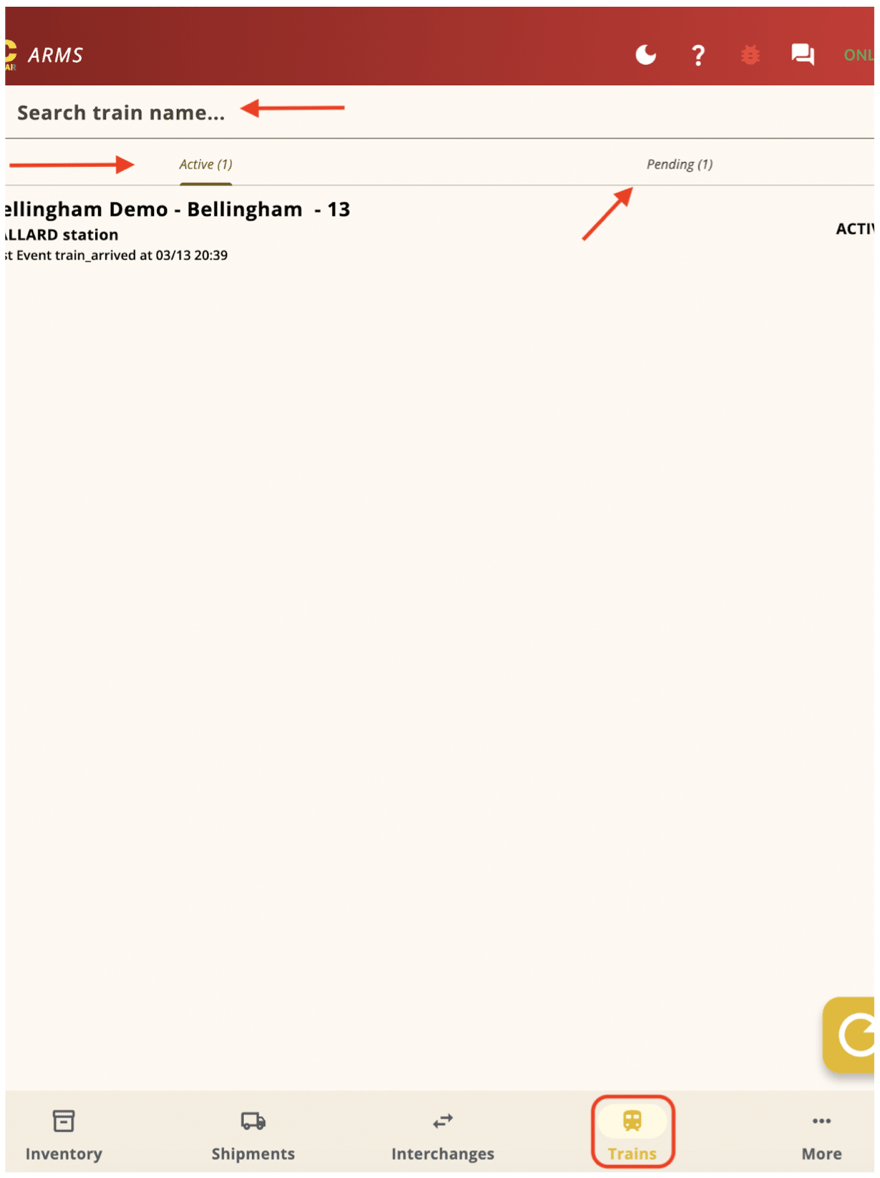 ### Status tabs
| Status | Meaning |
| - | - |
| **Active** | Trains and jobs currently in progress |
| **Pending** | Waiting for train set or activation |
| **Closed** | Completed work |
| **Annulled** | Cancelled work |
Start with **Active** for in-progress field work. Use **Pending** when you need to train-set an upcoming movement.
### Find a train or job
Use search and filters (when available) to narrow the list by:
* Train ID
* Location (origin, destination, or current location)
* Designated date
Tap a row to open the train or job detail screen.
## Consist
The Consist tab shows the ordered list of cars on the train. For each car you typically see:
* Car initial and number
* Load/empty status (when configured)
* Task indicators (pickup / setout)
* Sequence position
### Status tabs
| Status | Meaning |
| - | - |
| **Active** | Trains and jobs currently in progress |
| **Pending** | Waiting for train set or activation |
| **Closed** | Completed work |
| **Annulled** | Cancelled work |
Start with **Active** for in-progress field work. Use **Pending** when you need to train-set an upcoming movement.
### Find a train or job
Use search and filters (when available) to narrow the list by:
* Train ID
* Location (origin, destination, or current location)
* Designated date
Tap a row to open the train or job detail screen.
## Consist
The Consist tab shows the ordered list of cars on the train. For each car you typically see:
* Car initial and number
* Load/empty status (when configured)
* Task indicators (pickup / setout)
* Sequence position
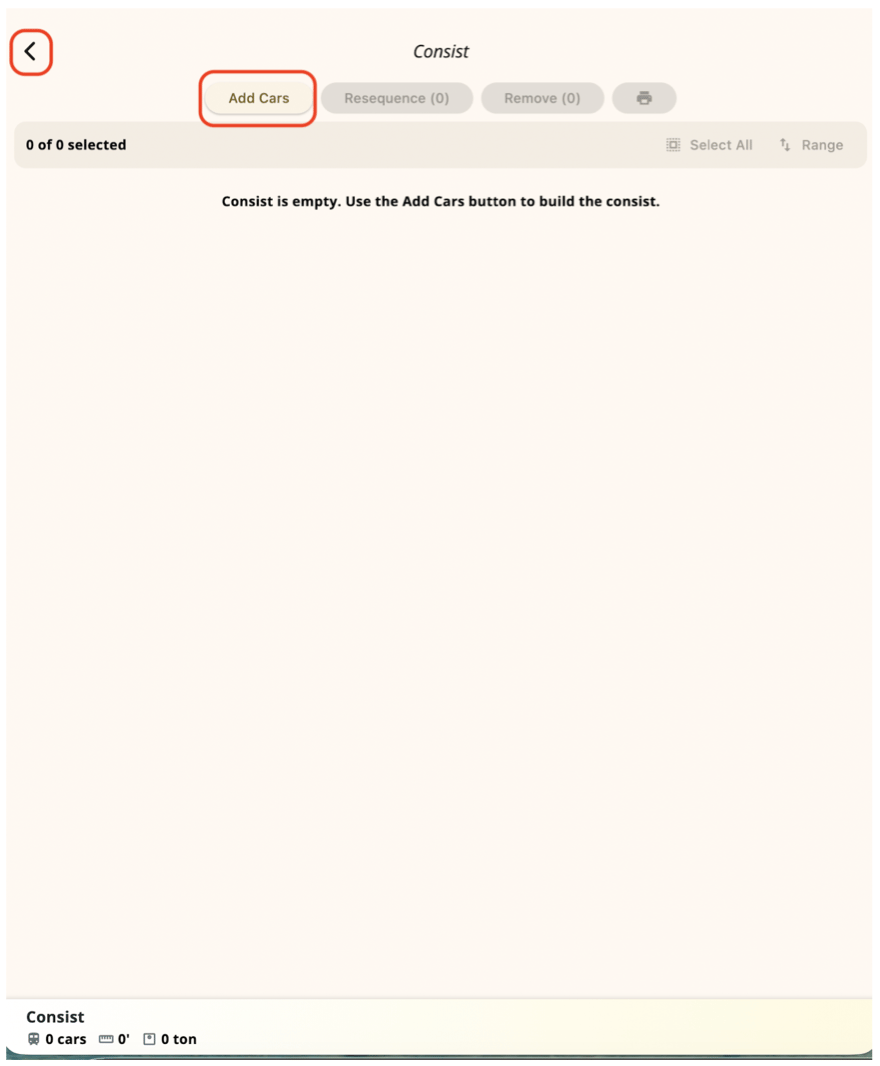 When you select cars or task equipment, the app shows selection counts so you can confirm how many are included before acting. Tap the full-screen control to expand the task set for easier review on a small screen.
### Adhoc pickup
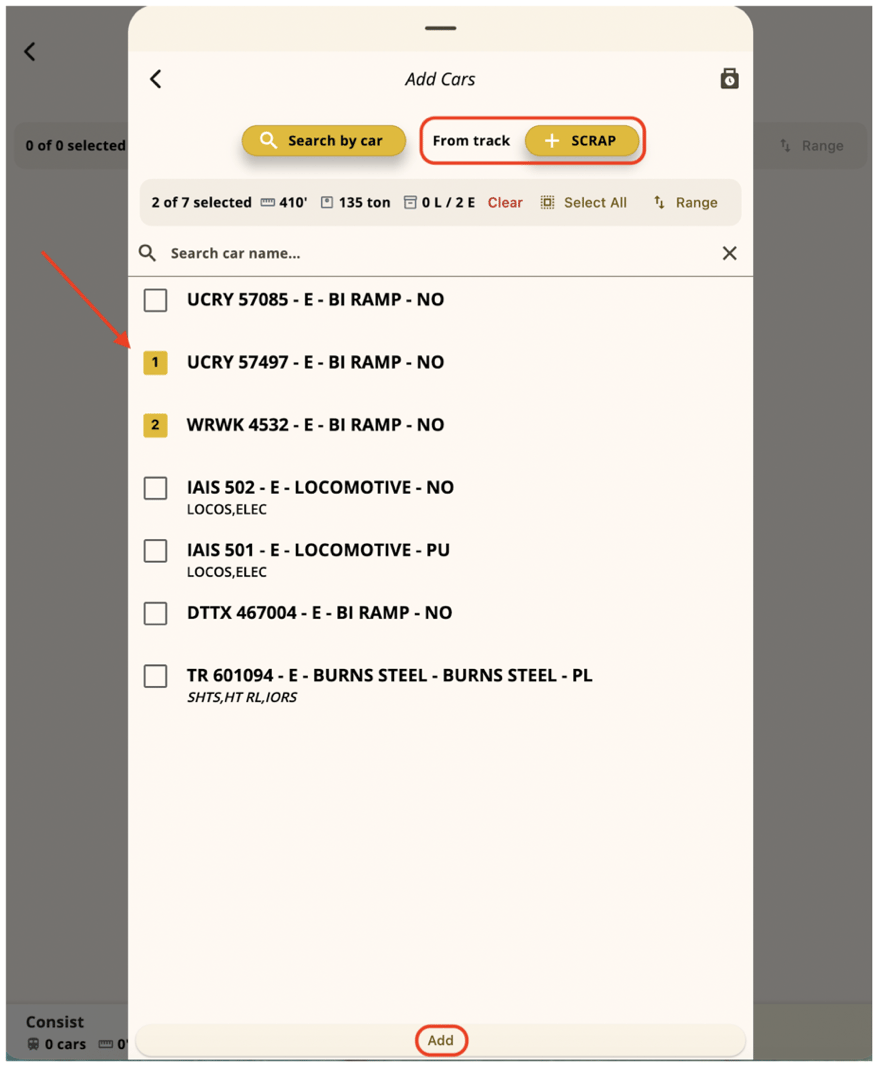
To add cars that are not already on the consist, tap **Add Cars**. Search by car number or select from a track, then check the cars to add.
When you select cars or task equipment, the app shows selection counts so you can confirm how many are included before acting. Tap the full-screen control to expand the task set for easier review on a small screen.
### Adhoc pickup
To add cars that are not already on the consist, tap **Add Cars**. Search by car number or select from a track, then check the cars to add.
 ## Tasks
Tasks are per-car work at a stop.
| Abbreviation | Task type | Typical meaning |
| - | - | - |
| **P** | Pickup | Pull a car from a track or spot onto the train |
| **S** | Setout | Spot a car from the train onto a track or spot |
Each task has a status:
| Status | Meaning |
| - | - |
| **Not started** | Work not yet performed |
| **Completed** | Task finished successfully |
| **Won't complete** | Marked with an exception — work could not be completed |
Task detail may also show assigned track, assigned spot, and task location. Look for completion summaries (for example, "3 out of 10 tasks completed") before you depart or close.
## Complete a pickup or setout
Trains must be set before tasks can be completed.
Open it from the Trains list.
Use whichever view your layout shows for field execution.
Choose the car you are working.
* **Pickup** — confirm the car is being pulled onto the train.
* **Setout** — confirm the car is being spotted at the assigned track or location.
## Tasks
Tasks are per-car work at a stop.
| Abbreviation | Task type | Typical meaning |
| - | - | - |
| **P** | Pickup | Pull a car from a track or spot onto the train |
| **S** | Setout | Spot a car from the train onto a track or spot |
Each task has a status:
| Status | Meaning |
| - | - |
| **Not started** | Work not yet performed |
| **Completed** | Task finished successfully |
| **Won't complete** | Marked with an exception — work could not be completed |
Task detail may also show assigned track, assigned spot, and task location. Look for completion summaries (for example, "3 out of 10 tasks completed") before you depart or close.
## Complete a pickup or setout
Trains must be set before tasks can be completed.
Open it from the Trains list.
Use whichever view your layout shows for field execution.
Choose the car you are working.
* **Pickup** — confirm the car is being pulled onto the train.
* **Setout** — confirm the car is being spotted at the assigned track or location.
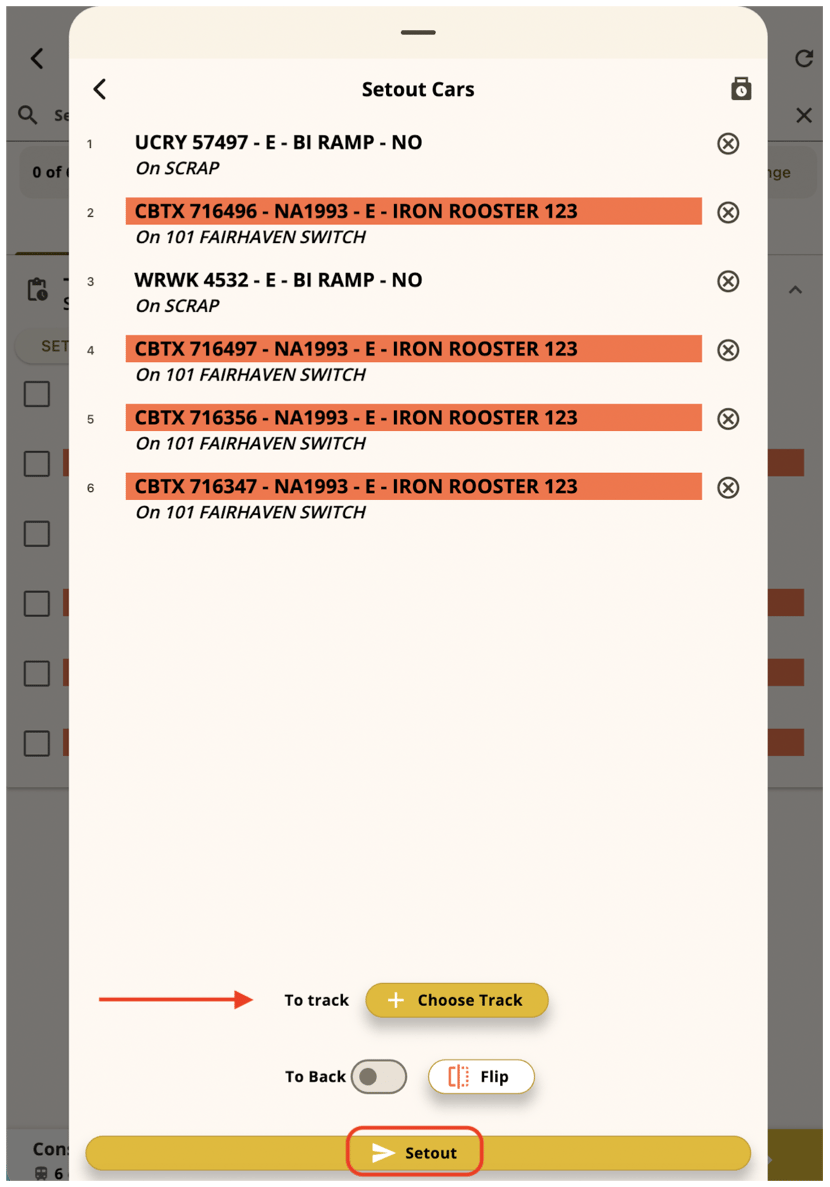 Confirm the assigned track or spot if prompted, then mark the task **Complete** when the physical move is done.
### Assign an exception ("Won't complete")
If you cannot complete a task (blocked track, car not found, safety hold):
1. Select the task.
2. Choose **Assign exception** (shown as **Won't complete** on some screens).
3. Select or enter an exception reason if required.
4. Confirm.
Exception tasks stay visible for dispatch and audit. Do not force-close a train without coordinating with your yardmaster or dispatcher when exceptions exist.
If tasks look out of date after a consist change, pull to refresh or reopen the train. Refreshing tasks from the web app typically requires affected tasks to still be **Not started**. Completed or excepted tasks may not refresh automatically.
## Train lifecycle
These actions move the train or job through its operational states. What you see depends on your carrier's mobile settings.
### Train set
Train set activates a **Pending** train or job and records that the consist is ready for departure work.
1. Open a Pending train or job.
2. Review the consist and tasks.
3. Tap **Train set**.
4. Confirm when prompted.
After train set, the status moves to **Active** and crews can execute tasks and depart (when permitted).
### Depart
Depart records that the train is leaving the current location.
1. Open an Active train that is ready to depart (when that indicator is used).
2. Complete or except outstanding tasks as required by your operation.
3. Tap **Depart**.
4. If prompted about incomplete tasks, review the list. Some operations require all tasks complete; others allow depart after confirmation.
5. Confirm depart.
The train enters **In transit** until it arrives at the next location.
### Arrive
Arrive records that the train has reached a location.
1. Open an In transit train.
2. Tap **Arrive**.
3. Confirm the arrival location and time if prompted.
After arrival, the train returns to **Active** at the new location. New tasks may be generated depending on your job configuration.
## Related pages
Tabs and switching carriers
Move cars that are not on a train
How Train IDs are built
## Related topics
- [Train ID template](/user-docs/train_job/id.md)
- [Inventory](/user-docs/mobile/inventory.md)
- [Cedar Mobile](/user-docs/mobile/overview.md)
- [List Work Orders](/api-reference/workorderservice/list-work-orders.md)
- [Update a Work Order](/api-reference/workorderservice/update-a-work-order.md)
Confirm the assigned track or spot if prompted, then mark the task **Complete** when the physical move is done.
### Assign an exception ("Won't complete")
If you cannot complete a task (blocked track, car not found, safety hold):
1. Select the task.
2. Choose **Assign exception** (shown as **Won't complete** on some screens).
3. Select or enter an exception reason if required.
4. Confirm.
Exception tasks stay visible for dispatch and audit. Do not force-close a train without coordinating with your yardmaster or dispatcher when exceptions exist.
If tasks look out of date after a consist change, pull to refresh or reopen the train. Refreshing tasks from the web app typically requires affected tasks to still be **Not started**. Completed or excepted tasks may not refresh automatically.
## Train lifecycle
These actions move the train or job through its operational states. What you see depends on your carrier's mobile settings.
### Train set
Train set activates a **Pending** train or job and records that the consist is ready for departure work.
1. Open a Pending train or job.
2. Review the consist and tasks.
3. Tap **Train set**.
4. Confirm when prompted.
After train set, the status moves to **Active** and crews can execute tasks and depart (when permitted).
### Depart
Depart records that the train is leaving the current location.
1. Open an Active train that is ready to depart (when that indicator is used).
2. Complete or except outstanding tasks as required by your operation.
3. Tap **Depart**.
4. If prompted about incomplete tasks, review the list. Some operations require all tasks complete; others allow depart after confirmation.
5. Confirm depart.
The train enters **In transit** until it arrives at the next location.
### Arrive
Arrive records that the train has reached a location.
1. Open an In transit train.
2. Tap **Arrive**.
3. Confirm the arrival location and time if prompted.
After arrival, the train returns to **Active** at the new location. New tasks may be generated depending on your job configuration.
## Related pages
Tabs and switching carriers
Move cars that are not on a train
How Train IDs are built
## Related topics
- [Train ID template](/user-docs/train_job/id.md)
- [Inventory](/user-docs/mobile/inventory.md)
- [Cedar Mobile](/user-docs/mobile/overview.md)
- [List Work Orders](/api-reference/workorderservice/list-work-orders.md)
- [Update a Work Order](/api-reference/workorderservice/update-a-work-order.md)