

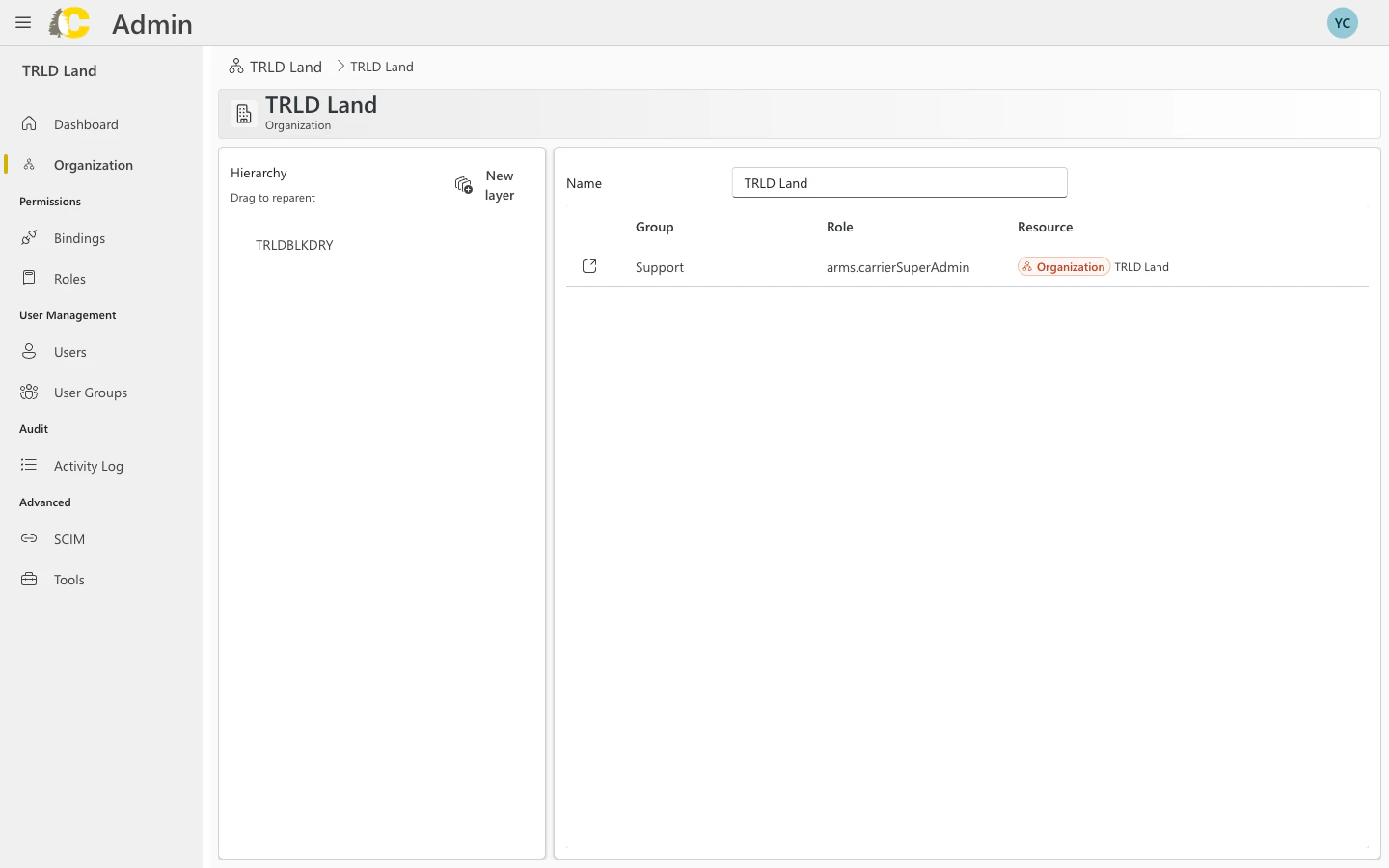
The Organization page becomes available after Cedar sets up your initial organization structure. Once enabled, you can manage your own organization hierarchy, including creating layers and assigning access.
What you can do
View hierarchy
See your organization’s structure as a visual tree
Create layers
Add new organizational layers (divisions, regions, etc.)
Reparent items
Drag and drop to reorganize the hierarchy
Manage bindings
Assign roles and access at each level
Understanding the hierarchy
The organization hierarchy is a tree structure that represents how your business is organized. Each level in the hierarchy can have:- Name — A descriptive label for the layer
- Child layers — Sub-divisions nested underneath
- Bindings — Role assignments that grant access at this level
Create a new layer
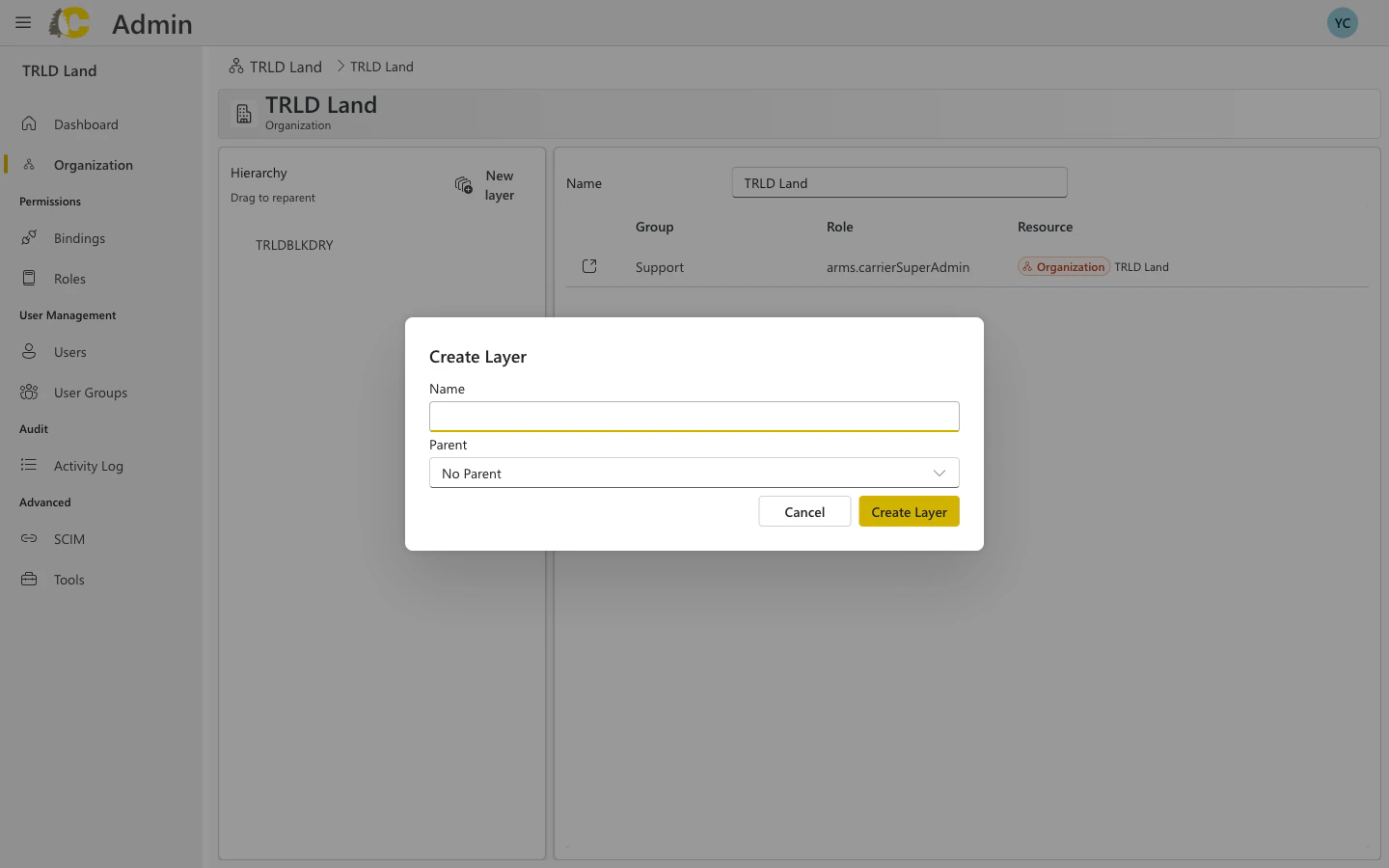
Layers allow you to structure your organization into logical divisions (e.g., regions, departments, business units).Select parent
Choose the parent layer in the hierarchy. Select “No Parent” for a top-level layer, or choose an existing layer to nest underneath.
Dialog fields explained
| Field | Description |
|---|---|
| Name | A descriptive name for the layer (e.g., “West Region”, “Operations Division”) |
| Parent | The parent layer in the hierarchy, or “No Parent” for top-level layers |
Reorganize with drag and drop
You can rearrange the hierarchy by dragging layers to new positions:- Click and hold on a layer in the tree
- Drag it to its new parent
- Release to reparent the layer
Manage bindings at each level
Each layer in the hierarchy can have its own bindings. Click on a layer to see and manage its bindings in the right panel.| Column | Description |
|---|---|
| Group | The user group that has access |
| Role | The permissions granted |
| Resource | The scope of access (Organization, Carrier, etc.) |
Bindings at a higher level in the hierarchy cascade down to all child layers. You don’t need to recreate bindings at every level.
Best practices
Mirror your business structure
Mirror your business structure
Design your hierarchy to match how your organization actually operates. This makes it intuitive for users to understand access levels.
Keep it simple
Keep it simple
Avoid creating too many layers. A deep hierarchy can be confusing and harder to manage. Most organizations work well with 2-4 levels.
Use descriptive names
Use descriptive names
Layer names should be immediately understandable. Avoid abbreviations or codes that require explanation.
Plan before you build
Plan before you build
Sketch out your hierarchy before creating it. Reorganizing later is possible but affects access inheritance.
Getting started with organizations
Organizations are set up by Cedar as part of the initial configuration. Contact your account representative to enable organization management for your account.
- Contact Cedar support or your account representative
- Describe your organizational structure needs
- Cedar will configure the initial structure in the Tools page
- Once set up, the Organization menu item appears and you can manage it yourself
Related pages
Tools & Advanced Settings
Initial organization setup and advanced options
Bindings
Learn more about role bindings
User Groups
Manage the groups that get access
IAM Concepts
Deep dive into access control