

SCIM (System for Cross-domain Identity Management) automates user provisioning. Your identity provider can automatically create, update, and deactivate users in Cedar.
This page covers creating SCIM mappings in the Admin Portal. For technical setup in your identity provider, see the SCIM Setup Guide.
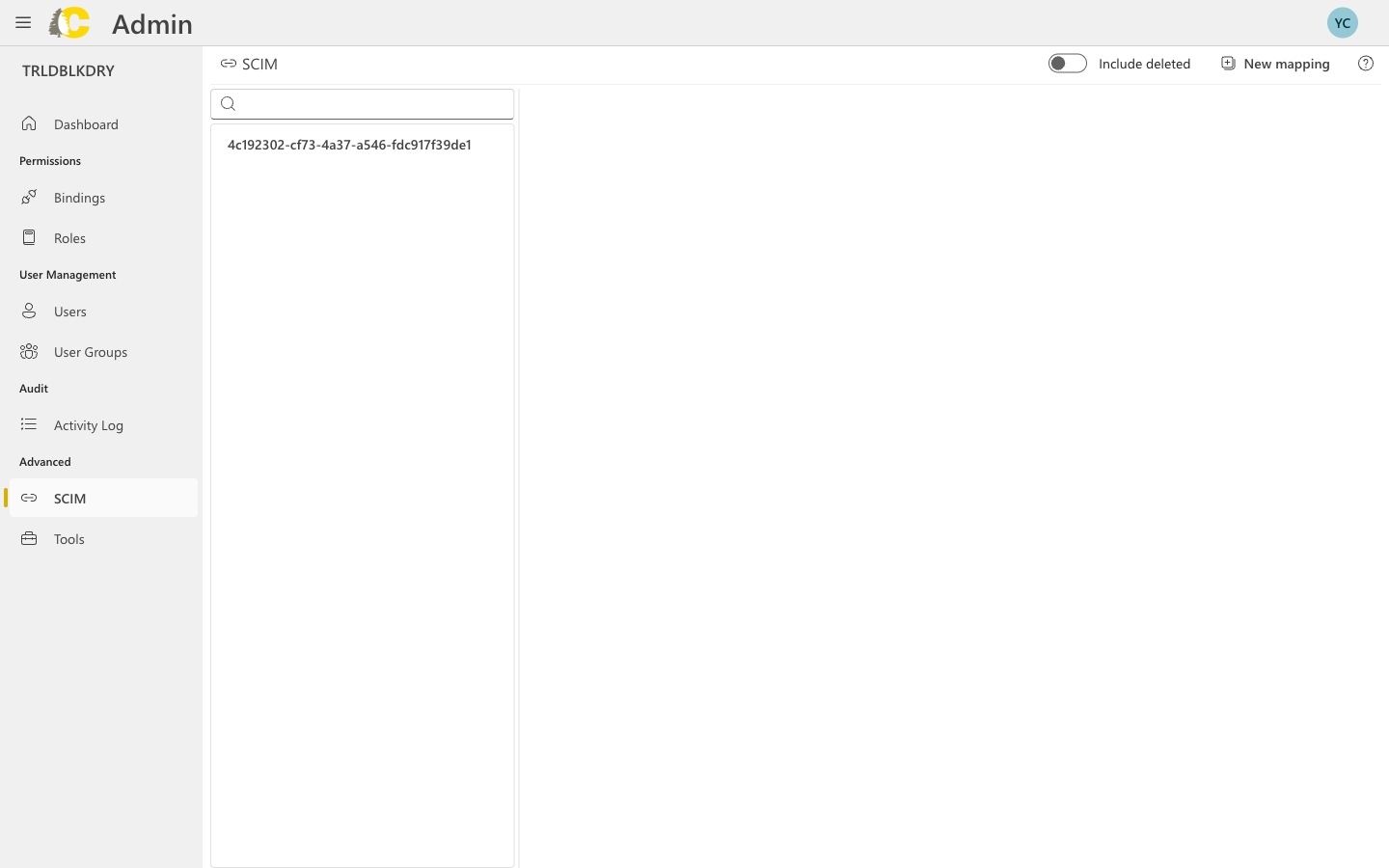
What SCIM does
Auto-create users
New employees are added to Cedar automatically
Sync changes
User details stay in sync with your IdP
Auto-deactivate
Departing employees lose access automatically
When to use SCIM
- You should use SCIM if...
- You might not need SCIM if...
- Your organization uses an identity provider (Azure AD, Okta, etc.)
- You have many users to manage
- You want automatic provisioning/deprovisioning
- You need to ensure timely access revocation
Create a SCIM mapping
Get your tenant ID
In your identity provider (Azure AD, Okta, etc.), find the SCIM tenant ID that will be used for provisioning.
Select the target
Choose where users should be provisioned:
- Organization — users can access all carriers in the organization
- Carrier — users are limited to a specific carrier
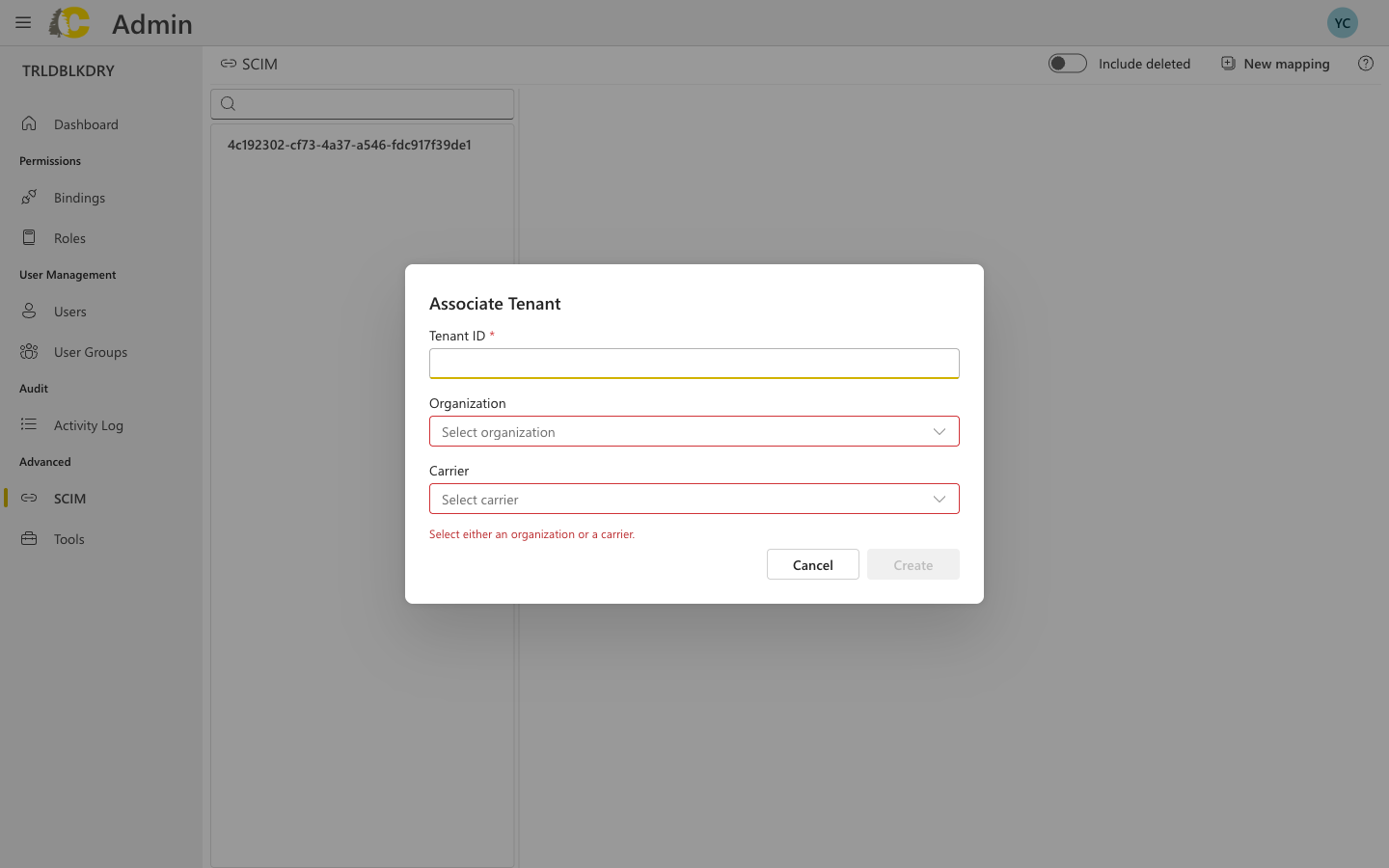
Dialog fields explained
| Field | Required | Description |
|---|---|---|
| Tenant ID | Yes | The unique identifier from your identity provider |
| Organization | One required | Select if users should have access across all carriers |
| Carrier | One required | Select if users should be limited to a specific carrier |
You must select either an organization or a carrier — not both. This determines the scope of access for all users provisioned through this mapping.
SCIM mapping details
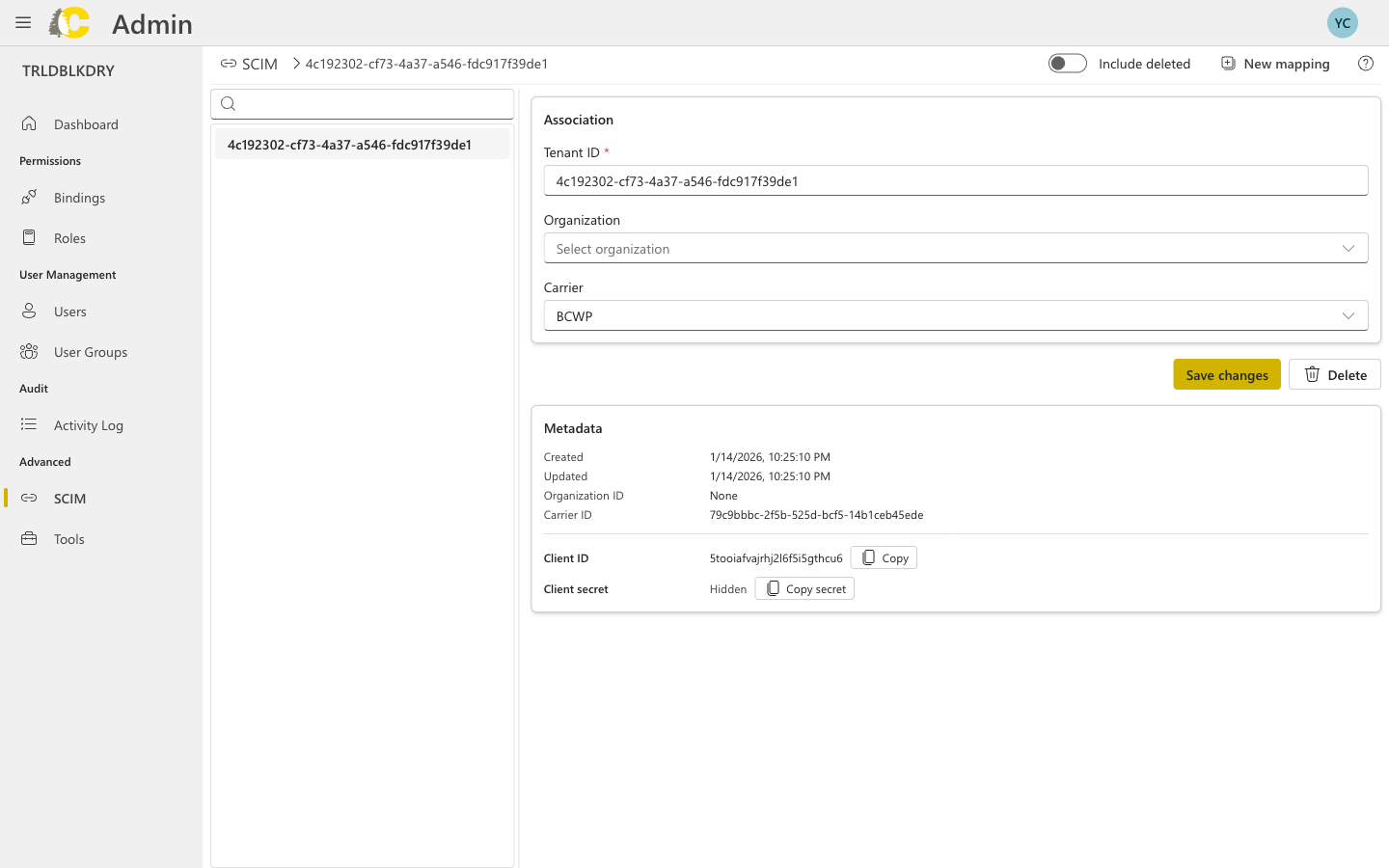
- Tenant ID — the identifier from your IdP
- Organization/Carrier — where users are provisioned
- Client ID — used by your IdP to authenticate
- Client Secret — keep this secure (click to copy)
- Metadata — creation and update timestamps
Include deleted mappings
Toggle Include deleted to see mappings that were removed or deactivated. This is useful for:- Auditing previous configurations
- Understanding historical setup
- Restoring accidentally deleted mappings
Best practices
Secure your credentials
Secure your credentials
The client secret is only shown once. Copy it immediately and store it securely in your identity provider.
Test with a small group first
Test with a small group first
Before enabling SCIM for your entire organization, test with a small group of users to ensure provisioning works as expected.
Monitor initial sync
Monitor initial sync
After setting up SCIM, monitor the Users page to ensure users are being created correctly.
Remember group assignments
Remember group assignments
SCIM creates users, but you still need to add them to groups and create bindings for access. Consider using your IdP’s group sync features.
Related: SCIM Setup Guides
SCIM Technical Overview
Supported SCIM features and protocol details
Azure AD / Entra ID Setup
Step-by-step Azure configuration