

Cedar Mobile is the field app for ARMS. Use it to work inventory, receive interchanges, and run trains from a phone or tablet.
Sign in
Open ARMS Mobile and sign in with your Cedar account. If your company uses SSO, follow the mobile SSO guide.The tabs
When you open the app, five tabs sit along the bottom of the screen. The selected tab is highlighted in yellow.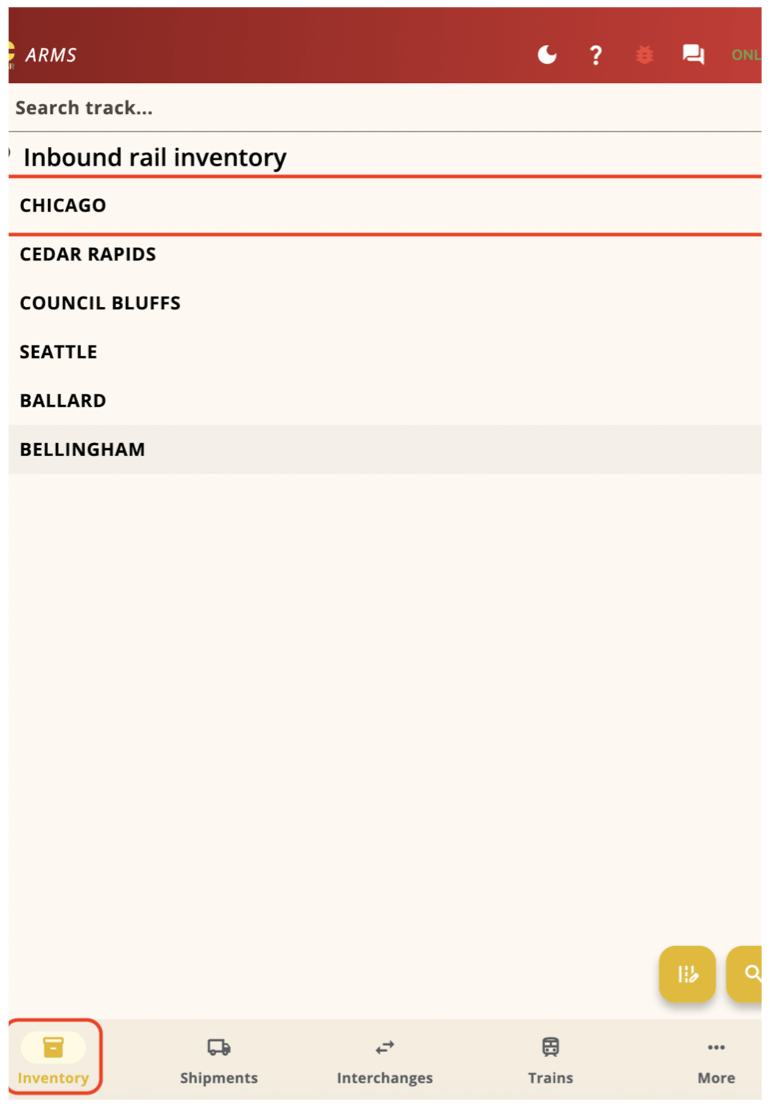
The Inventory tab is selected. Each row is a station. Tap the star to favorite a station — favorites move to the top of the list.
Change the tab order
Open More → Configure screens and drag the screens into the order you want. Use this to keep Interchanges on the tab bar if you receive cars every day.Switch carriers
If you work more than one railroad, change the active carrier from Profile.1
Open More, then Profile
Tap the More tab, then tap Profile.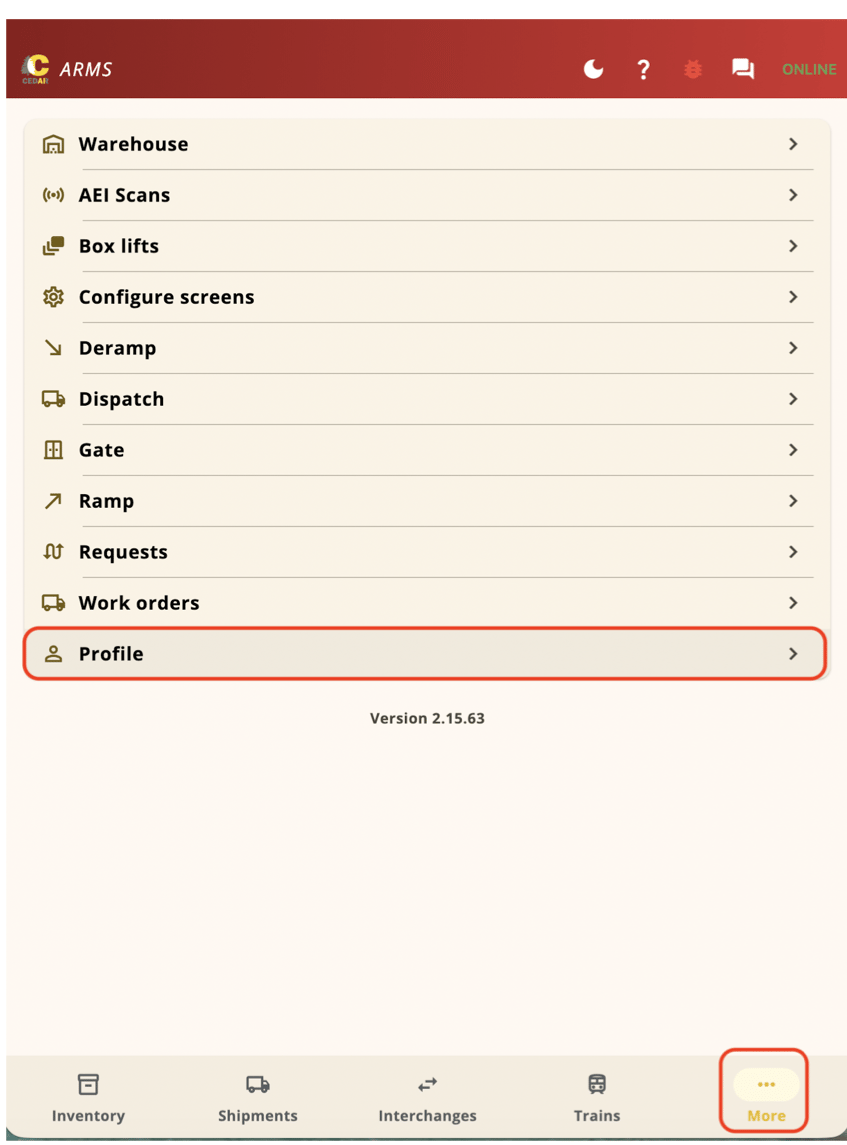
The More menu. Profile is near the bottom of the list.
2
Choose a carrier and save
Tap Choose a carrier, pick the railroad, then tap Save.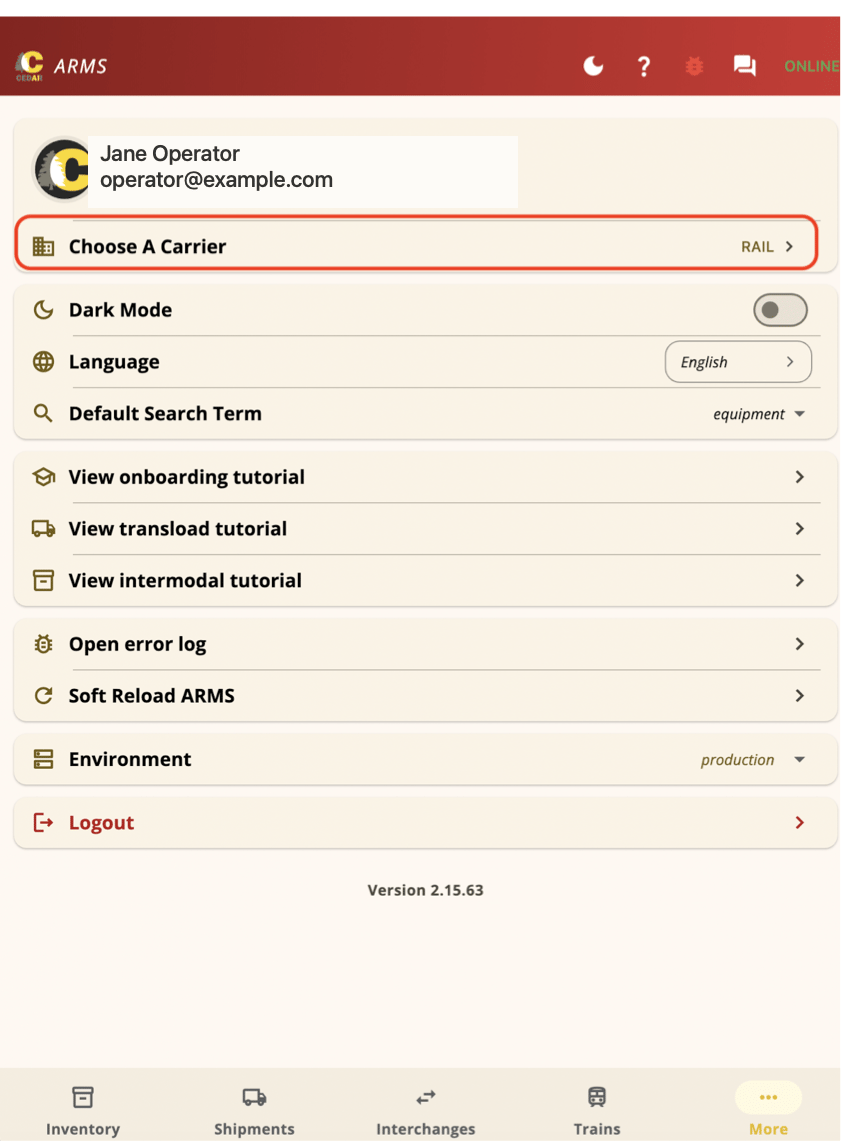
Profile. Choose a carrier is the first setting on the page.
Quick reference
Related pages
Inventory
Browse stations, select cars, and move them to another track
Interchanges
Review, receive, and create interchanges
Trains & Jobs
Train-set, pick up, set out, depart, and arrive
Mobile SSO
Sign in with Microsoft, Google, or Okta