

Overview
Before starting, register your Okta organization URL with Cedar.AI. Once registered, your users will transition to the new login method—notify users ahead of time.1
Open ARMS and navigate to Settings
Sign in to ARMS, go to Settings, then select Sign-in options.
2
Enter tenant code (optional shortcut)
Enter your Cedar tenant code. With code
ABCD, you can use https://accounts.cedarai.com/login?tenant=ABCD.3
Choose Okta and configure credentials
Select Okta as the provider, then enter your organization URL, app client ID, and app client secret. Click Save.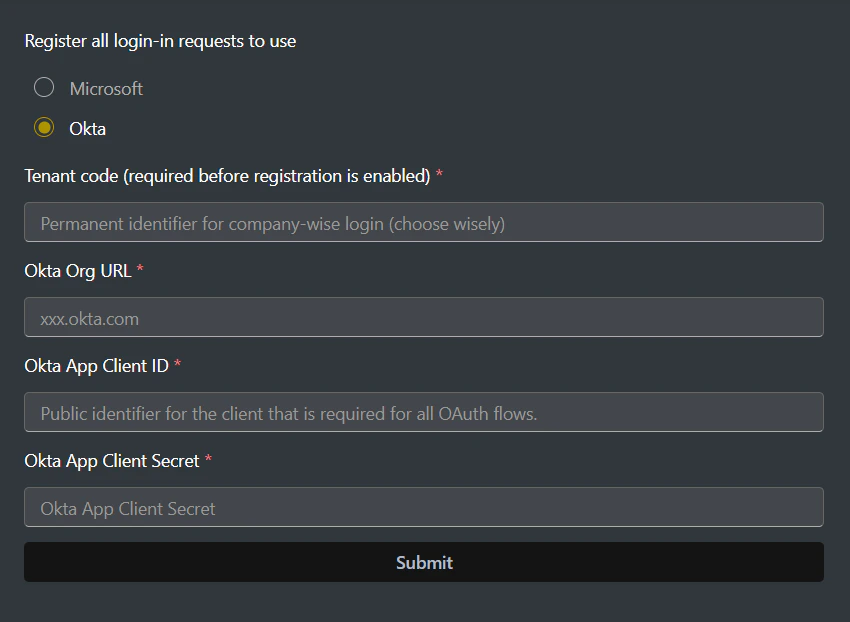
Features we support
- IdP-initiated SSO
- SP-initiated SSO
Gradual rollout
If you’d like to phase in SSO while keeping a fallback to Cedar identity for select users, enable gradual rollout. See Gradual rollout for details.Tips and troubleshooting
- Ensure the org URL format is correct, e.g.,
companyname.okta.com. - Add the Cedar.AI integration to your Okta org and assign users who need access.
- Users must still be assigned to a Cedar user group with sufficient permissions.
Need help? Email support@cedarai.com.