

These advanced options will be available to all customers in a future release.
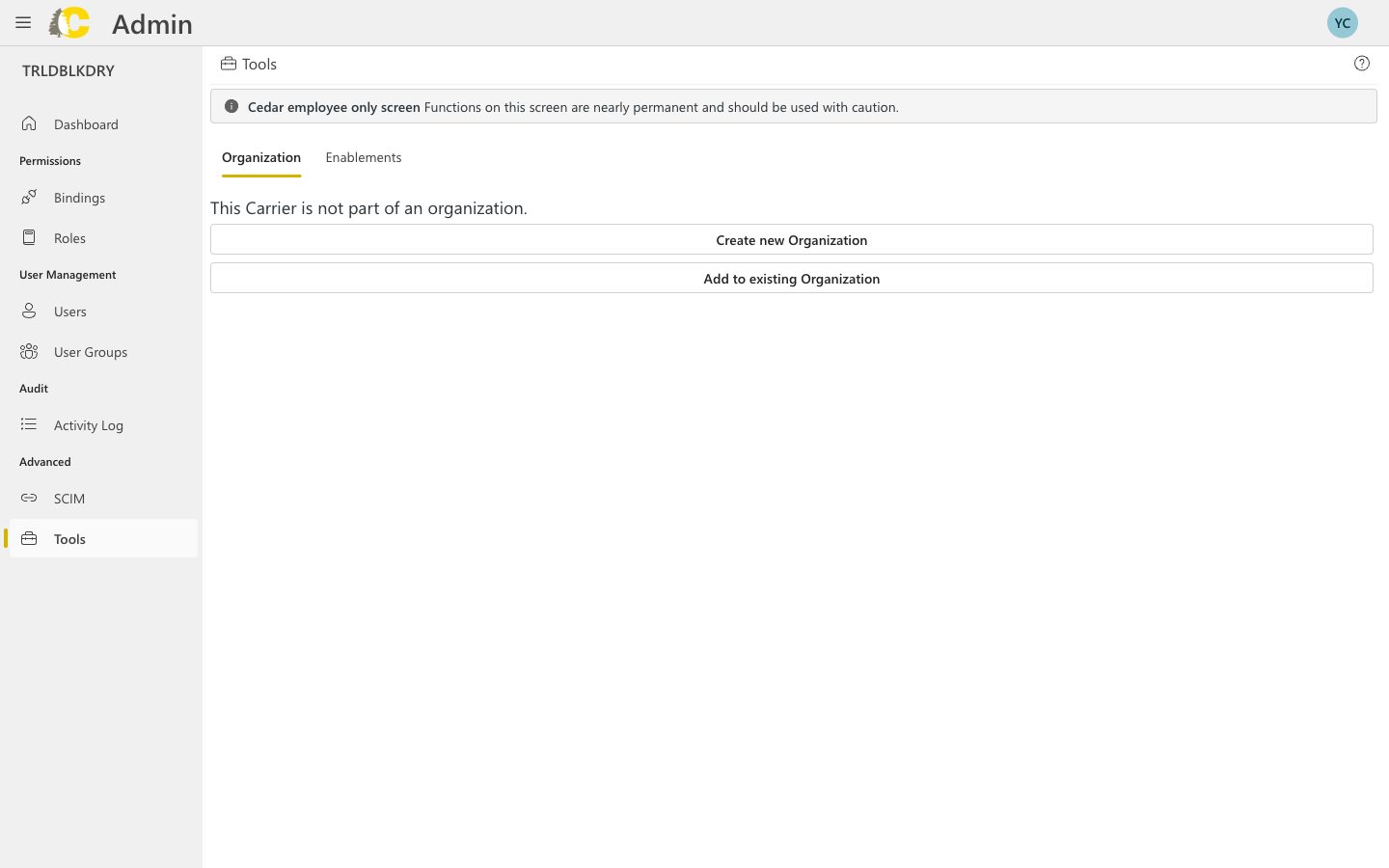
Tools page with organization and enablements tabs
Available tools
- Organization
- Enablements
Manage how your carrier relates to organizations.Available actions:
- Create new Organization — set up a new organization that can contain multiple carriers
- Add to existing Organization — attach this carrier to an existing organization
Organizations allow you to manage multiple carriers under a single umbrella with shared settings and access controls.
API Key Management
API keys are self-service. You can create and manage them in either of two places, depending on how you want to control what the key can do. Both issue keys for thex-arms-api-key header described in the
API Introduction.
Create an API client in Cedar Data Depot
Open API clients
Open Cedar Data Depot from Cedar Accounts, select your carrier, and go to API clients. Select Create your first API client (or create a new client from the list).
Name the client and set its expiry
Enter a name that says what the integration is for, and choose when its first credential expires.
Choose endpoints and assumed users
Select the API families or individual endpoints the client may call. Then choose the Cedar users it may send in
x-arms-assume-user, or sync that list from a single Cedar user group.Copy and secure the credential
The credential is shown only once. Copy it into an approved secret manager before you leave the page. The starter request uses
$CEDAR_API_KEY rather than the raw secret.Create an API key in the Admin Portal
Open API Keys
In the Admin Portal, go to Advanced → API Keys and create a new key.
Add a description
Enter a clear description so you know what this key is for.Good descriptions:
- “Production ERP integration”
- “Development testing - John’s team”
- “Warehouse management system sync”
Choose a scope and security options
- Scope — bind the key to a user group or a specific user. The key can only assume users in that scope.
- IP allowlist (optional) — restrict which IP addresses or CIDR ranges can use this key
- Expiration date (optional) — set when the key should automatically expire
Copy and secure the key
The API key is only shown once. Copy it immediately and store it securely.
API key best practices
Use descriptive names
Use descriptive names
Anyone reviewing API keys should understand what each key is for without having to ask.
Set expiration dates
Set expiration dates
Keys that don’t expire are a security risk. Set reasonable expiration dates and rotate keys regularly.
Use IP allowlists
Use IP allowlists
When possible, restrict API keys to specific IP addresses. This limits damage if a key is compromised.
Revoke unused keys
Revoke unused keys
Regularly audit your API keys and revoke any that are no longer in use.
One key per integration
One key per integration
Create separate keys for each integration or system. This makes it easier to revoke access without affecting other systems.
When to contact Support
Organization changes
Before creating or modifying organization structures
Feature enablements
If you’re unsure about enabling/disabling features
API key issues
If you need help with API key configuration
Cedar employee screens
If you see a warning about restricted functions
Related pages
Organization Management
Manage your organization hierarchy and layers
API Documentation
Learn how to use the Cedar API
Activity Log
Review changes to settings
Glossary
Key terms explained